
Assets & property
Keep a list of laptops, phones and other equipment, hand them to staff and get them back, and track your rented offices and staff accommodation.
Checked against the app on Wednesday, November 4, 2026
1. What Assets & property is for
Assets & property is your register of company equipment and rented places. For every laptop, phone, SIM card, access card, tool or machine you see who has it, since when, and whether they confirmed they received it. For every office, warehouse, shop or staff accommodation you keep the Ejari contract, the landlord, the rent and the rent cheques. Moazaf reminds the right people before a warranty, a tenancy contract or a rent cheque falls due.
Assets in the menu on the left. The page has two tabs: Assets and Properties.
Owner, Admin, Fleet Manager
- What they can do
- Add, edit, retire and delete assets and properties, hand assets to employees and take them back, record rent cheques, and set up the asset types.
HR Manager, Finance, PRO / Documents Officer, Auditor
- What they can do
- See the assets, properties and their history, without changing them.
Line Manager
- What they can do
- Sees the items their own team members hold.
Employee
- What they can do
- Sees what they hold in the Moazaf app and confirms that they received it (see the employee section below).
Assets & property is a plan module. If your plan does not include it, you cannot add assets or properties, and a tab with no records shows Assets & property are not in your plan. Records added before stay viewable read-only: a note at the top says so, and they cannot be edited, handed over, deleted or given new cheques or maintenance until your plan includes the module again. Your plan may also limit how many vehicles, assets and properties you keep in total; retired records do not count. See Settings › Plan & billing.
Company cars have their own page, Fleet, with plates, service, fines and Salik. Handing over a car works the same way as handing over an asset.
For HR and administrators
2. Add an asset
Assets › Add asset
The counters at the top show what is In use, With a holder, Available and In repair. Click a counter to filter the list. You can also search by name, tag, serial number or holder, and filter by Type and Company.
- Click Add asset.
- Choose the Type, for example Laptop / computer, Mobile phone, SIM card or Access card, and the Company that owns it.
- Enter the Name (and the Name (Arabic) if you like), the Reference printed on your asset label, the Serial number and the Location where it is kept.
- Fill in the Additional details for that type, for example the brand and model of a laptop.
- Under Purchase or lease, choose the Ownership and enter the Supplier, Purchase date and Purchase cost.
- Click Create. The asset page opens, ready to hand over.
Have the purchase invoice? Use Scan invoice at the top of the form: Moazaf reads the supplier, the purchase date and the price from the file and shows them to you. Check them, then click Apply to form to fill in those fields before you click Create.
Two assets cannot share the same Reference. Many assets at once? Click Import on the Assets tab and upload an Excel or CSV file. If a row has the employee number of the person who holds the item, Moazaf records the handover to them too.
The list of types, and the extra fields for each type, are under Settings › Resource types. Click New type to add your own, for example Tablet, and use Add field to capture details such as an IMEI number.
For HR and administrators
3. Hand an asset to an employee
Assets › open the asset › Hand over
- Open the asset and click Hand over.
- Under Employee, search for the person by name or employee number and select them.
- Check the Handover date & time. It starts at the current time; set an earlier time if the item was handed over before.
- Describe the Condition at handover, for example New in the box, with charger. Add Handover photos and Notes if useful.
- Click Hand over.
The asset is now Assigned and the employee shows as Current holder with the label Awaiting acknowledgement. If the employee uses the Moazaf app, they get a notification asking them to confirm receipt.
- The employee signed a paper form instead? Click Record acknowledgement on the asset page and add a note, for example where the signed form is kept. The holder then shows Acknowledged (paper).
- Moving it straight to someone else? Click Transfer. The same panel records how the item came back from the current holder and who gets it next, at the same moment.
- The asset also shows on the employee's profile, in the Car & assets tab, under Currently holding.
An item has only one holder at a time, and it cannot be handed to a former employee.
For employees
4. Confirm receipt (employees)
When HR hands you a laptop, a phone or another item, Moazaf asks you to confirm that you received it, in the condition written at handover.
- Open Moazaf on your phone. While you hold something, a My car & assets card shows on Home: tap it. You can also tap Me in the bottom menu, then My car & assets.
- Check the item and the date under it. Items you have not confirmed yet are marked Confirm receipt.
- Tap I received it, then tap I received it again to confirm.
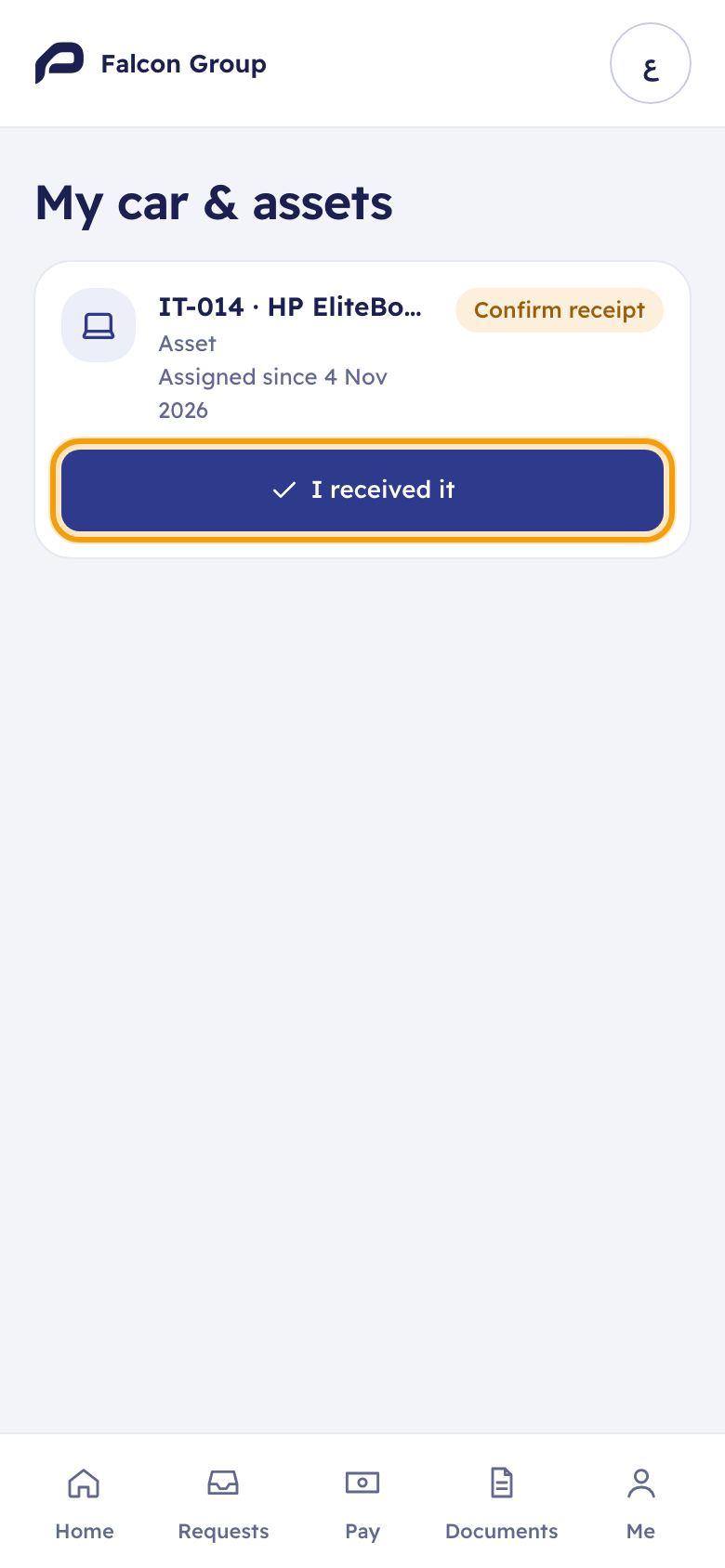
The item now shows Received, and the person who handed it over gets a notification. Items you gave back are listed under Previously assigned.
Something is missing or damaged? Tell HR before you confirm, so they can correct the handover.
For HR and administrators
5. Get an asset back
Assets › open the asset › Return
- Open the asset and click Return.
- Check the Return date & time and describe the Condition at return.
- If something is broken, describe it under Damage found. Leave Create a repair record for the damage ticked to add a repair to the asset's maintenance history, linked to this employee.
- Under After the return, choose Available if it can be handed out again, or In repair.
- Add Return photos if useful, then click Return.
The Holders tab keeps the full history: who had the item, from when to when, the condition each way, and who confirmed receipt.
- Sold, lost or scrapped? Open the ⋯ menu on the asset page and choose Retire. The asset leaves the active list but stays in history and reports. Reactivate brings it back.
- Out for repair while nobody has it? Choose Mark as in repair in the same menu, and Mark as available when it is back.
- Delete removes the asset with all its history. Use it only for records created by mistake; Moazaf asks you to confirm first.
When someone leaves, the asset return task of an offboarding checklist lists every item they still hold, so nothing is forgotten (see the People guide).
For HR and administrators
6. Papers, repairs, warranties and costs
The asset page keeps everything about one item in tabs. Properties use the same page, with Rent cheques instead of Holders.
Overview
- What it holds
- The current holder, the next paper to expire, the purchase cost, the cost this year and the main details.
Documents
- What it holds
- Papers of the item, for example an Equipment inspection certificate or a Purchase invoice. Papers with an expiry date get reminders like any other document.
Holders
- What it holds
- Every handover and return (assets only).
Maintenance
- What it holds
- Repairs and inspections with the invoice and cost (Record maintenance), and the Warranties of the item (Add warranty).
Costs
- What it holds
- The Total cost of ownership: the purchase price plus the recorded costs your role may see. Shown to roles that may see costs. If costs are recorded in more than one currency, the total uses the main one, and the purchase price is added only when it is in that currency. Costs in other currencies (and a purchase price in another currency) are listed under Other currencies with the note that they are not in the total; nothing is converted.
Activity
- What it holds
- Who changed what, and when.
Add the end date of each warranty: Moazaf reminds you 30 days before it ends, while you can still claim a repair.
For HR and administrators
7. Properties and rent cheques
Assets › Properties › Add property
- Open the Properties tab and click Add property.
- Choose the Type (for example Office, Warehouse or Staff accommodation) and the Company, and enter the name.
- Under Tenancy, enter the address, the Ejari number, Contract start and Contract end, the Annual rent, Cheques per year, Security deposit, the Landlord and the DEWA / utility account.
- Click Create.
To plan the rent payments, open the property, choose the Rent cheques tab and click Generate schedule. Moazaf divides the Annual rent between the cheques, starting on the First cheque date; if it does not divide exactly, the few fils left over go on the first cheque. If the First cheque no. is digits only, Moazaf numbers the next cheques for you; any other reference is saved on the first cheque only. Click Generate.
- Use the ⋯ menu on each cheque to mark it as Deposited, Cleared, Bounced or Cancelled. The line at the top shows Paid (the Cleared cheques) and Still to pay (the Pending, Deposited and Bounced cheques: a bounced cheque is still owed). Cancelled cheques are not counted in either.
- A Cleared cheque is added to the property's costs as rent, on its Cleared on date.
- Cheques given one by one, or a contract that changed? Use Add cheque. Generate schedule is offered only while the property has no cheques yet.
- Attach the Tenancy contract (Ejari) in the Documents tab, so its expiry is followed too.
Properties are not handed over to employees. The offices used for attendance check-in are set up separately, in Settings › Offices & sites.
For HR and administrators
8. Reminders
Every morning (07:15, Dubai time) Moazaf checks your assets and properties and reminds the people who manage them:
A warranty ends
- When you are reminded
- 30 days before its end date
A tenancy contract ends (Contract end)
- When you are reminded
- 60 days before
A rent cheque is due (still Pending)
- When you are reminded
- 7 days before the due date
A paper in the Documents tab expires
- When you are reminded
- Like every other document, following your document reminder settings (see the Documents guide)
- Who gets them: for each warranty, contract or cheque, the people whose role may edit or hand over that item, such as the Fleet Manager (only for the companies their role covers). Owners and Admins are not included, except that if nobody qualifies for an item, the Owner gets it. Papers in the Documents tab follow your document reminder settings instead.
- How: a notification in Moazaf (the bell at the top), plus one email a day listing the new items. Each item is sent only once to each person.
- No emails? Open the menu under your initials, choose Account & security, and check that Daily email digest is on.
In the lists, the Next expiry and Contract end columns show how many days are left. On the Properties tab, the Papers ≤ 30 days counter shows how many properties have a paper that has expired or expires within 30 days.
9. Common questions
A handover was recorded by mistake.
- Answer
- Open the asset's Holders tab. An Owner, Admin or Fleet Manager can remove that line with Delete holder record. Use it only to fix mistakes.
The employee does not see the I received it button.
- Answer
- They need a Moazaf login linked to their employee profile: open their profile in People and click Invite to app. Without a login, record their signed paper form with Record acknowledgement.
Can I enter a handover that happened last month?
- Answer
- Yes. Set the Handover date & time in the past. It must be after the item's last return: Moazaf blocks dates that overlap the existing history.
How do I see everything one employee holds?
- Answer
- Open their profile in People and choose the Car & assets tab: Currently holding at the top, Past holdings below.
Why can I not retire an asset?
- Answer
- Retire is offered only when nobody holds it. Record the Return first.
Can employees ask for a laptop or a phone?
- Answer
- Yes, if you have an asset request type (see the Requests guide). Once the request is approved, handing an item over to that employee closes the request's handover task.
Can I download the list?
- Answer
- Yes. Export downloads the list as you see it, with your search and filters.
Still stuck? Email support@moazaf.com.
Still need help?
Email our support team. Tell us your company name and what you were trying to do.
support@moazaf.com