
Attendance & check-in
Offices, schedules and holidays, phone check-in with GPS, the daily report and corrections.
Checked against the app on Wednesday, November 4, 2026
1. How attendance works
Moazaf turns check-ins into a daily record for every employee: present, late, absent, on leave or overtime. HR sets it up once: the offices, the working hours and the public holidays. After that, employees check in and out from their phone's web browser, so nothing needs to be installed. Their GPS location is compared with the office's check-in zone.
Owner, Admin and HR Manager
- What they do in attendance
- Set up schedules, holidays, shifts and devices. See everyone's attendance and fix missed check-ins. Only the Owner and Admin can add or change offices.
Line Manager
- What they do in attendance
- Sees the attendance of their own team and approves the team's correction requests.
Payroll Admin
- What they do in attendance
- Sees attendance and reviews overtime and deductions in Payroll adjustments.
Employee
- What they do in attendance
- Checks in and out from the phone and sees their own recent check-ins.
Attendance is part of the Business and Enterprise plans, and of the free trial. You can see your plan under Settings › Plan & billing. If your plan does not include it, for example after the trial ends or the plan changes, nothing is deleted: the Attendance page and My attendance still show the records read-only, with a note at the top. You can open and export them, but you cannot check in, fix a day, approve or change anything until your plan includes Attendance again.
Before you start, have these ready:
- The location of every office or site where staff check in. You can copy it from Google Maps.
- Your working hours, weekend days and how many minutes of lateness you allow.
- An email address for each employee who will check in.
- Employees need a smartphone with internet and location (GPS) turned on.
For HR and administrators
2. Add your offices and their check-in zone
Settings › Offices & sites
Each office has a point on the map and a check-in zone: a circle around the office, set by the geofence radius. When the schedule requires it, an employee can check in only when the phone is inside this circle.
- Open Settings › Offices & sites and click Add office.
- Choose the Company and type the office name in English and Arabic. Choose the Emirate and add the Address if you like.
- Enter the Latitude and Longitude of the office entrance (see the tip below).
- Enter the Geofence radius (m): from 25 to 5,000 metres. If you leave it empty, Moazaf uses 150.
- Tick Head office if this is the company's main office (one per company), then click Add. Repeat for every office, warehouse or site.
How to find latitude and longitude: open Google Maps on a computer and right-click the exact office entrance. The first line of the menu shows two numbers, such as 25.18570, 55.27720. Click them to copy. The first number is the latitude, the second is the longitude.
Office in a tower or building
- Suggested radius
- 100 – 200 m
Warehouse, factory or large yard
- Suggested radius
- 250 – 400 m
Construction or project site
- Suggested radius
- 300 – 500 m
Phone GPS is less accurate indoors. Moazaf also refuses a check-in when the phone's own accuracy is worse than the radius. A radius that is too small can reject people who are really inside the building.
In the list, click the coordinates of an office to open that spot in Google Maps and check it is the right building.
Employees can check in only at the offices of their own company. An office without a latitude and longitude cannot be used for check-in while the schedule requires the geofence.
For HR and administrators
3. Create the work schedule
Attendance › Schedules & policies
The schedule holds a company's working hours and rules. Moazaf uses it to mark each day as present, late, absent or overtime. Every company whose staff check in needs at least one schedule; without it, employees see “Ask HR to configure your work schedule first.”
- Open Attendance and select the Schedules & policies tab.
- Click New schedule.
- Choose the Company, enter a name in English and Arabic, and set Effective from: the first day the rules apply.
- Set the type, the hours, the grace minutes, the break and the weekend days, then choose the check-in rules (see the table below).
- Click Save.
Type
- What it does
- Fixed: the same hours every day. Flexible: only the daily target counts, so nobody is marked late; a short day counts as early departure. Split: two periods a day, using the second start and end fields.
Check-in / start and Check-out / end
- What it does
- Your normal start and end time, for example 09:00 – 18:00. An end earlier than the start means the next day (a night shift).
Target (minutes)
- What it does
- Normal working minutes per day: 480 is 8 hours. Time worked above it is overtime.
Grace (minutes)
- What it does
- How late an employee may arrive, or how early they may leave, before it counts. Past the grace, all the minutes count.
Unpaid break (minutes)
- What it does
- Taken off the worked time every day.
Weekend
- What it does
- Days off. Saturday and Sunday are ticked at first. Work on these days counts as rest-day work.
Require geofence
- What it does
- On at first. Check-in is accepted only inside the office zone. Recommended.
Allow off-site visits
- What it does
- On at first. Lets staff check in away from an office if they type a visit reason.
Require selfie
- What it does
- Staff must take a photo with every check-in and check-out.
Propose late / early deductions and Propose absence deductions
- What it does
- Moazaf suggests deductions for late arrival, early leaving and absent days. Nothing is deducted until someone approves it.
Overtime policy
- What it does
- Pay adjustment (paid overtime), Time in lieu (extra time becomes leave days, added to the balance you choose under Time in lieu credits) or No overtime adjustment.
OT threshold (minutes)
- What it does
- Moazaf proposes overtime pay or time in lieu only when a day's overtime reaches this many minutes. Shorter overtime still shows in the daily report. The default is 30.
Changing the rules later: a schedule is not edited. On its card, click New version, change what you need and set a later Effective from date. For each day, Moazaf uses the latest version that started on or before that day, so past days keep their original rules.
For HR and administrators
4. Check your public holidays
Settings › Leave › Holidays
On a public holiday nobody is marked absent, and work on that day counts as holiday work. The same list is used when Moazaf counts working days of leave.
- Open Settings › Leave and select the Holidays tab. You can also click Manage holidays in the Schedules & policies tab.
- Check the list. The fixed-date UAE holidays (New Year, Commemoration Day, National Day) are already there.
- Islamic holidays depend on the moon sighting. When the official UAE dates are available in Moazaf, choose the year, click Add UAE public holidays for …, tick the dates and click Add selected.
- For any other day off, click Add holiday. Enter the date (and an End date for a holiday of several days, up to 14), the name, and leave Companies empty if it is for all companies.
For employees
5. Check in and out from the phone
For HR first: an employee can check in only when their employee profile is linked to a Moazaf login. Open People, open the employee's profile, click Invite to app, enter their email and click Send invitation. The employee taps Accept invitation in the email and creates a password. If the employee already has a login in your workspace, an Owner or Admin can use Actions › Link an existing member on the profile instead. Make sure the profile has the right company.
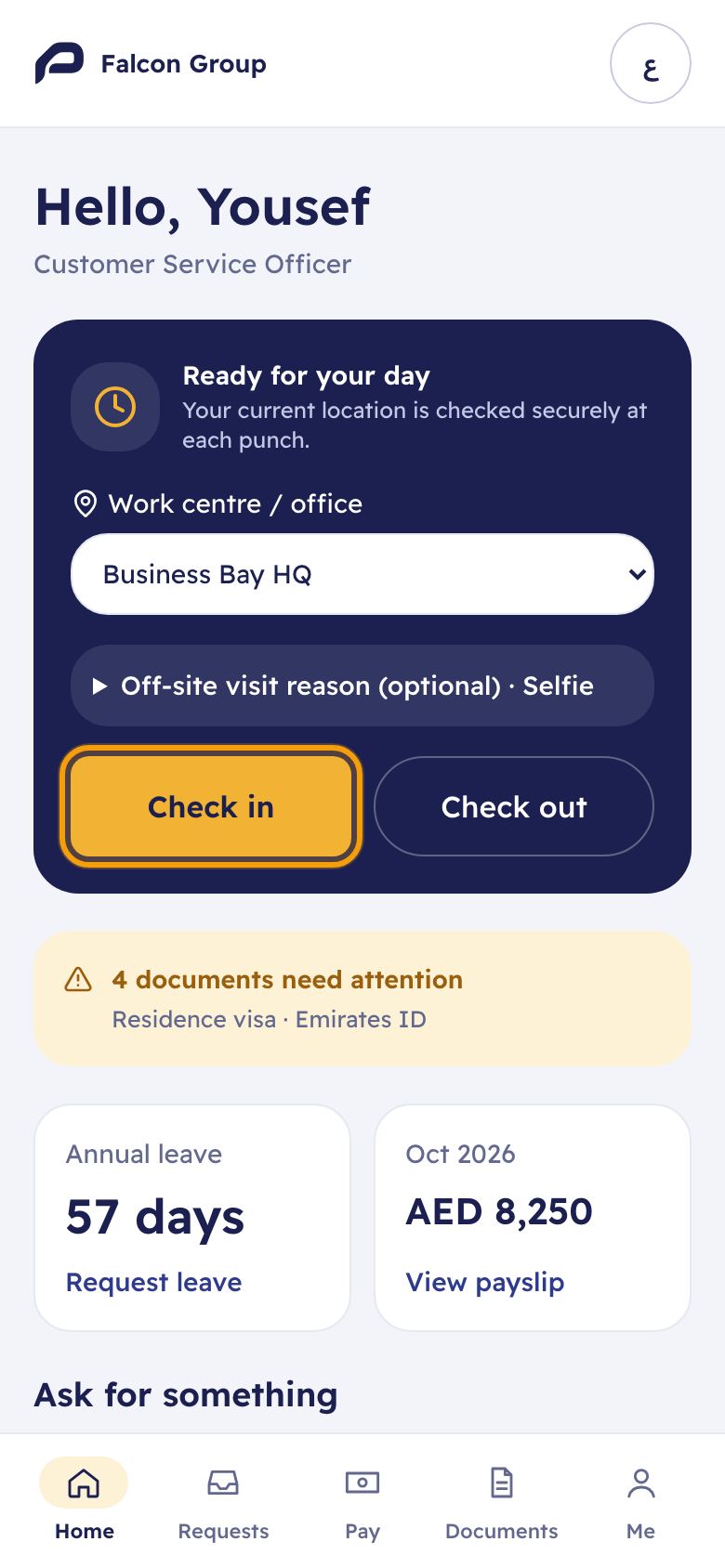
- Open Moazaf on your phone. The check-in card is at the top of Home.
- Under Work centre / office, choose the office you are at.
- Tap Check in. The first time, the phone asks to use your location: choose Allow.
- You see “Check-in recorded”. That's it.
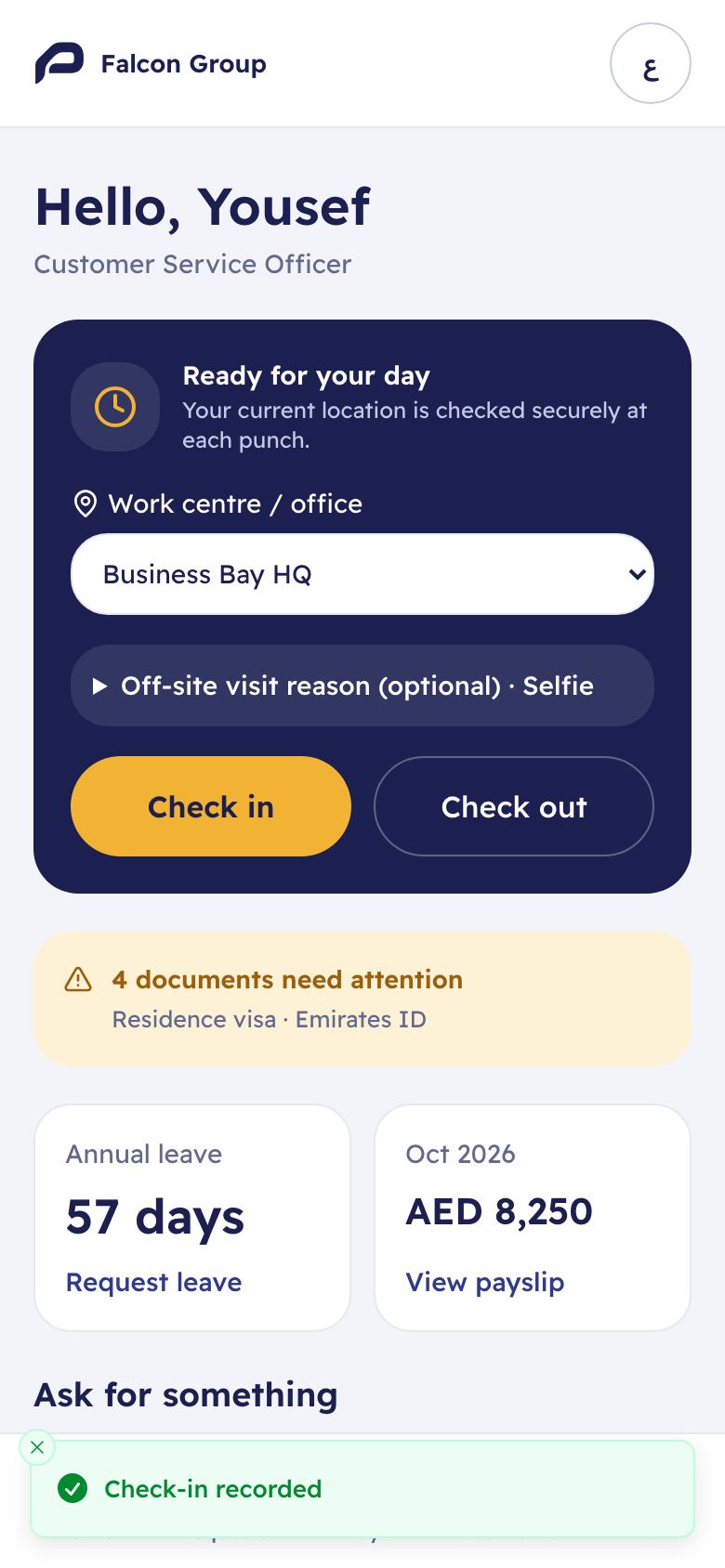
When you leave, do the same and tap Check out. You see “Check-out recorded”. After a check-out you can check in again on the same day, for example after lunch.
- Working away from the office: if your company allows off-site visits, open Off-site visit reason (optional) on the card, type the reason (for example the client's name and area) and tap Check in. The office zone is not checked, but your location is still recorded and HR sees the reason.
- Selfie: if your company requires one, take it in the same section before you tap.
- No internet: Moazaf saves the check-in on your phone and sends it when the phone is back online while Moazaf is open. If you closed it, open Moazaf again (still signed in) once you have internet. It must reach Moazaf within 12 hours, and a selfie cannot be saved this way.
- Your history: tap Me › Check-in to see your Recent check-ins of the last two weeks. You can also check in from there.
- Something wrong? From the phone you cannot correct a check-in yourself. Ask HR or your manager; the original record is kept.
Add Moazaf to your home screen. iPhone (Safari): tap Share, then Add to Home Screen. Android (Chrome): tap the ⋮ menu, then Add to Home screen or Install app. Moazaf then opens like an app.
If a check-in is not accepted, Moazaf says why:
“Your location is outside the office boundary or GPS accuracy is too low.”
- What to do
- Make sure you are at the office and precise location is on. Wait a few seconds and try again near a window or the entrance. On a work visit, add a visit reason. If it keeps happening, ask HR to check the office location and radius.
“Allow precise location access, then try again.”
- What to do
- Allow location for Moazaf in the phone settings. iPhone: Settings › Privacy & Security › Location Services › Safari Websites, choose While Using the App and turn on Precise Location. Android: in Chrome, Settings › Site settings › Location, and allow it for Moazaf.
“Ask HR to configure your work schedule first.”
- What to do
- Your company has no schedule yet. HR creates one.
“Select an office and add a selfie if your schedule requires one.”
- What to do
- Choose your office, and take a selfie if your company requires it.
“You are already checked in today. Check out first.”
- What to do
- Tap Check out instead.
“You just did this. Wait a minute, then try again.”
- What to do
- Two taps must be at least a minute apart.
“No connection — saved on this device, will sync automatically.”
- What to do
- Keep Moazaf open, or open it again once you are online. The check-in must reach Moazaf within 12 hours.
For HR and administrators
6. See who is present, late or absent
Attendance › Daily report
One line per employee per day, with the Status, Worked minutes, Late minutes, Early minutes, Overtime minutes, and whether a correction was approved. The totals are at the top. Choose the dates in From and To and click Apply; you can also filter by employee, office or status.
Present
- Meaning
- Checked in and out within the schedule.
Late
- Meaning
- Checked in more than the grace minutes after the start time.
Early departure
- Meaning
- Fixed and split schedules: checked out more than the grace minutes before the end time. Flexible schedules: worked less than the daily target.
Missing punch
- Meaning
- A check-in without a check-out, or the other way round. Fix it with a correction (next section).
Absent
- Meaning
- A working day with no check-in, no approved correction, and no approved leave for the whole day. A half day of leave does not prevent it.
Weekend, Holiday, On leave
- Meaning
- A day off. The employee is not counted as absent.
- Each check-in updates the day at once. Every day around midday, Moazaf also re-checks the two previous days, so a day without any check-in shows as Absent from the next day.
- Export daily CSV downloads the lines you see. Monthly summary CSV gives the totals per employee.
- After you change a schedule, holidays or leave, click Evaluate dates to recalculate a period of up to one year, up to today.
Attendance › Raw punches
Every single check-in and check-out with its time, Source (Mobile for phones, CSV file for imports, Device API for machines) and Location: the office and the distance from it, or the visit reason. If a selfie was taken, View opens it. Use it to answer “when exactly did I check in?”. These records are never changed.
For HR and administrators
7. Fix a missed or wrong check-in
Attendance › Regularisation
- Click Regularisation at the top of the Attendance page.
- Choose the Employee and the Date (today or earlier).
- Enter the full, correct times in Check-in / start and Check-out / end. If the employee worked two periods that day, also fill Second start (optional) and Second end (optional).
- Type the Reason and click Save.
The correction is a request and follows your approval steps. By default the employee's line manager approves it in Approvals; you can change this under Settings › Request types & approvals. Once it is approved, Moazaf recalculates the day with the corrected times and the daily report shows Approved in the Regularisation column. The original punches stay unchanged.
Only one open correction per employee and day is possible, and the day must be covered by a schedule.
For HR and administrators
8. Shifts, fingerprint machines and payroll
You only need these if you have rotating shifts, attendance machines, or pay overtime and deductions through Moazaf.
Attendance › Shift planner
For employees who work different hours on different days. Click Assign shift, choose the employee, the date, the schedule and the office, and click Save. New and changed shifts are drafts: when the week is ready, click Publish displayed drafts. Only published shifts count, and on that day they replace the company schedule. Drag a shift to another day, or use Edit / move.
Attendance › Devices · Raw punches › Import CSV
- Fingerprint or face machines: in Devices, click Add device, enter a name, the office and the Punch rule, and click Save. Moazaf shows a secret key once: copy it and give it to your device supplier so the machine can send punches to Moazaf. The key works with your own permissions, and only you see and can revoke it (Revoke credential).
- Upload a file: in Raw punches, click Import CSV and upload up to 1,000 rows. The file needs the header shown in the form: employee number, date and time with the time zone (for example 2026-09-01T09:00:00+04:00), `in` or `out`, and a unique ID per row. If your file uses `auto` instead, also tick Alternate in / out (auto): Moazaf then alternates in and out for each employee, so the rows must be in time order.
Attendance › Payroll adjustments
After a shift ends, Moazaf proposes overtime, rest-day or holiday work, time in lieu, and late or absence deductions, following the schedule's rules. Nothing reaches payroll until someone reviews it: click Review on a line, choose Approved or Rejected, check the amount and enter a reason. Approved pay lines go into the first payroll run whose attendance cut-off covers their day, and each line is paid only once. Approved time in lieu adds leave days.
- If the employee has a salary structure, overtime is paid at 125% of the basic wage, or 150% between 22:00 and 04:00 (not for night-shift schedules). Rest-day and holiday work is paid at the full daily wage plus 50% of the basic daily wage, for the part of the day actually worked, unless you tick Compensate with a substitute rest day instead of pay.
- Without a salary structure, and always for late and absence deductions, Moazaf uses the schedule's hourly rate. If that rate is 0, enter the amount yourself when you review the line.
- Nobody can review their own line. Lines with money need permission to see salaries (Owner, Admin, Payroll Admin).
9. Common questions
Do employees need to install an app?
- Answer
- No. Check-in works in the phone's web browser. They can add Moazaf to the home screen so it opens like an app.
An employee is inside the office but gets the location message. Why?
- Answer
- Check in Offices & sites that the latitude and longitude point to the entrance and that the radius is big enough. Make sure the phone has precise location on, and that the employee's profile has the right company.
Can an employee check in at another company's office?
- Answer
- No. The office list on the phone shows only the offices of the employee's own company.
Someone forgot to check out. What happens?
- Answer
- The day shows Missing punch, and no overtime or deduction is proposed for it. Fix it with Regularisation.
We changed our working hours. Do past days change?
- Answer
- Not if you use New version with a later Effective from date. Past days keep their rules. To recalculate a period on purpose, use Evaluate dates.
Does attendance change salaries by itself?
- Answer
- No. Only lines approved in Payroll adjustments go into payroll.
How do I see who checked in away from the office?
- Answer
- Open Raw punches: the Location column shows the visit reason, or the office and the distance from it.
Who can I ask for help?
- Answer
- Email support@moazaf.com.
Still need help?
Email our support team. Tell us your company name and what you were trying to do.
support@moazaf.com