
Leave
Leave types and policies, balances, requesting and approving leave, and the calendar.
Checked against the app on Wednesday, November 4, 2026
1. How leave works
Every kind of leave (annual, sick, maternity and so on) is a leave type. Each type has one or more policies that say who gets how many days and how the days are earned. Balances fill up automatically from the policies. Employees ask for leave, the request goes to an approver, and once it is approved the days come off the balance and show on the calendar and in attendance.
Time off
- Overview: your own balances and requests, when your login is linked to an employee.
- Team calendar: who is off in a month, one row per person.
- Requests: every leave request in your scope, with its status.
- Balances: the balance of every employee for each leave type, for one year.
Owner, Admin
- What they can do with leave
- Everything, including the leave settings and balance adjustments.
HR Manager
- What they can do with leave
- Everything for leave: settings, balances, requests for anyone, approvals.
Line Manager
- What they can do with leave
- Sees and approves the leave of their own team. Requests their own leave.
Payroll Admin
- What they can do with leave
- Sees everyone's leave, cannot approve or change it.
Employee
- What they can do with leave
- Sees their own balances and requests, and requests leave in the app.
For HR and administrators
2. Leave types and policies
A new workspace starts with the UAE leave types built in: annual, sick, maternity, parental, bereavement, study, Hajj, compassionate and unpaid leave. You can change them or switch them off, but you cannot delete them. Click Add leave type for anything else.
Settings › Leave › Leave types
The leave type decides how the leave is paid and counted:
- Pay: Paid, Unpaid or Tiered pay. Tiered pay uses Pay tiers: bands of days, one after the other, each paid at a percent. Built-in sick leave pays the first 15 days in full, the next 30 days at half pay and the next 45 days unpaid. Days beyond the last band are unpaid, and the bands count the days of the same type already taken that year.
- Counted in: Calendar days counts every day of the leave. Working days skips the employee's weekend and the public holidays.
- Track a balance: requests are limited by the days earned. Built-in Hajj and unpaid leave do not track a balance.
- Allow half days, Attachment required after (days), Maximum days per request and Eligible genders limit what can be requested.
- Leave salary: marks annual leave that counts towards leave salary (see Questions).
Under each type, the policies decide the entitlement. Click Add policy, or the pencil next to a policy to change it.
- Companies and Grades say who the policy is for. Leave both empty for everyone.
- Priority: when several policies match an employee, the lower number wins.
- Allowed during probation: when it is off, nobody can take this leave with a start date inside their probation.
- Accrual, Days per year, Days in the first year and Waiting period (months) decide how days are earned (next section).
- Unused days decides what happens at year end. Allow negative balance with Maximum days below zero lets people go below zero.
A leave type with no policy cannot be requested by anyone. A type you added can only be deleted while it has no requests and no balance entries; otherwise switch it off.
For HR and administrators
3. How days are earned and carried over
Balances run per leave year, 1 January to 31 December. The app posts earned days automatically every day, so you do not enter them by hand. How a policy earns days is set by Accrual:
Monthly
- What happens
- Days are earned for every completed month of service. Built-in annual leave earns 2 days a month in the first year (Days in the first year = 24), then 30 days a year. On the first work anniversary 6 more days (30 − 24) are added, so the first year earns the full 30.
Upfront on 1 January
- What happens
- The full yearly allowance is credited on 1 January. In the year the employee becomes eligible (the hire date plus any Waiting period (months)) it is credited on that date instead, prorated for the rest of the year and rounded up to the next half day.
On work anniversary
- What happens
- The full allowance is credited when the waiting period ends (on the hire date if there is none), then every 12 months after that.
No allowance
- What happens
- Nothing is credited. Use it for unpaid or case-by-case leave.
Waiting period (months) holds back the days until the employee has served that many months. With Monthly accrual the waiting months are then credited in one go; with the other methods crediting starts on that date (see the table). Built-in annual leave has a 6-month waiting period and cannot be taken during probation. Built-in study leave waits 24 months.
On 1 January, each employee's closing balance is carried over as set in Unused days:
- Do not carry forward: unused days lapse.
- Carry forward up to a limit: up to Maximum days carried move to the new year. Built-in annual leave carries up to 15 days.
- Carry forward everything: the whole balance moves.
- A negative closing balance always moves to the new year, so the days are still owed.
With Carried days expire after (months), carried days still unused that many months into the new year are removed. Leave taken in the new year uses the carried days first. Leave it empty and carried days never expire. With 12, unused carried days are removed on the last day of the year, before the next carry-over.
For HR and administrators
4. Public holidays
One holiday list is used by leave and attendance. The fixed-date UAE holidays (New Year, Commemoration Day, National Day) are already filled in. A holiday can last up to 14 days and can be limited to some companies; empty means all companies.
Settings › Leave › Holidays
- Click Add UAE public holidays for the year (shown when the app has a list for that year), tick the dates and click Add selected. Dates you already have are left out.
- For anything else, click Add holiday, enter the name and the Date, add an End date for a multi-day holiday, choose Companies if it does not apply to everyone, and click Add holiday.
- Leave counted in Working days skips holidays, so a request over a holiday uses fewer days. Leave counted in Calendar days, such as built-in annual leave, counts them.
- In attendance a holiday shows as Holiday instead of absent, and a day of approved leave shows as On leave.
Islamic holidays depend on the moon sighting. Add them once the dates are announced.
For employees
5. Requesting leave
Employees request leave in the employee app. HR can also enter leave for an employee in the web app, for example for someone without a login.
Employee app: Leave › Request leave
- Choose the Leave type.
- Choose From and To. Tick First day half or Last day half for a half day, if the type allows it.
- Add a Reason if you like, then tap Submit.
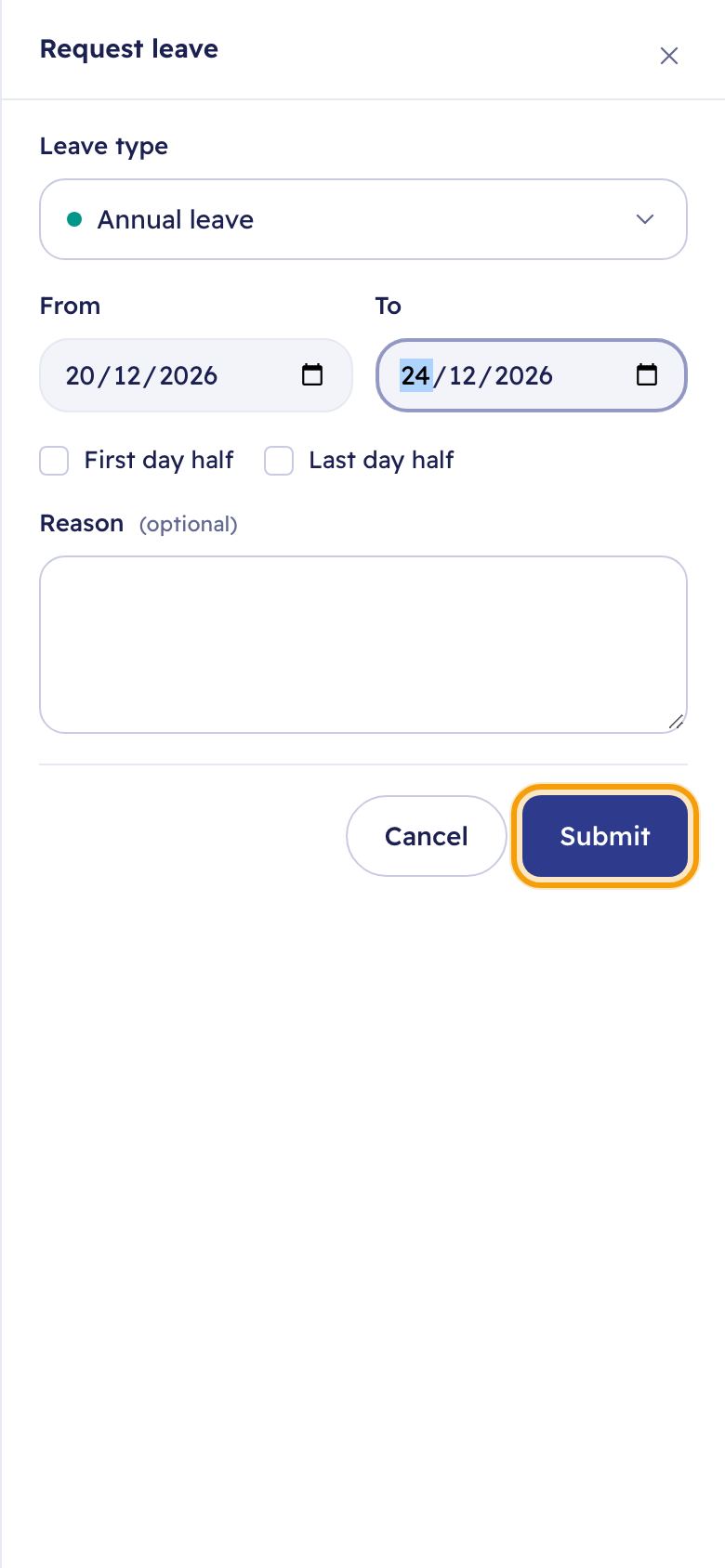
The request shows under My leave requests as pending until it is decided. Pending days are reserved: the available balance is the balance minus pending requests. You can cancel a pending request, or an approved one that has not started yet, with Cancel request; the days go back to the balance.
HR: Time off › Request leave
Choose the Employee and fill in the form as above. Before you submit, the window shows how many days you are requesting and the Balance after. Click Submit request.
The app refuses a request when:
- it overlaps another pending or approved leave of the same employee;
- the balance would go below zero, or below the negative limit of the policy;
- the start date is inside the probation and the policy does not allow it;
- it is longer than the Maximum days per request, or the employee is not eligible for the type;
- it is longer than Attachment required after (days) and no file is added under Attachments.
In the employee app the request form also has Attachments: for leave that needs a file, such as built-in sick leave of more than 1 day, maternity leave or study leave, the employee adds it there, or HR enters the request with the file.
The whole request uses the balance of the year it starts in.
For managers
6. Approving or rejecting
A leave request goes through the approval steps of the Leave request type. By default the first step is the employee's line manager, with 24 hours to respond. If your plan includes multi-step approvals, leave of more than 10 days then needs a second step, HR review by the HR Manager, with 48 hours; on other plans only the first step runs. The Owner, an Admin, or anyone whose role may manage request types can change the steps under Settings › Request types & approvals. If no line manager can be found, the request goes to the people who can approve leave, then to the owner. Nobody approves their own request.
Approvals
- Open the request. You see the Leave type, the dates, the Balance after and who else is on leave at the same time.
- Add a Comment for the employee if you like.
- Click Approve or Reject.
- When the last step approves, the days are taken off the balance and the leave shows on the calendar. With the Attendance module on, the leave's working days show as On leave in attendance; public holidays and weekends keep their own status, and a half day only lowers the hours expected that day.
- When the request is rejected, the reserved days are released.
- HR can cancel an approved request from the same page with Cancel request. The days go back to the balance and attendance is worked out again for those days.
For HR and administrators
7. Balances and adjustments
Time off › Balances
The table shows each employee's balance for each leave type in the chosen year. Available days are the balance minus pending requests. Every change is a line in the leave ledger: days earned, carried over, taken, given back or adjusted.
To correct a balance, or to bring balances over from your old system:
- Click Adjust on the employee's row.
- Choose the Leave type and the Type: Opening balance for days brought over, Adjustment for a correction, Encashment for days paid out.
- Enter the Days. Use a minus sign to deduct.
- Enter the Reason and click Save adjustment.
The window shows which leave year the adjustment goes to. The reason is kept in the ledger and the audit log.
For managers
8. The team calendar
Time off › Team calendar
The calendar shows one month, one row per person. Approved leave is solid, pending leave is light with a dashed edge, and weekends and public holidays are shaded.
What employees see of their colleagues' leave is set by the admin:
Settings › Leave › Calendar visibility
- Their team: colleagues with the same manager, plus that manager.
- Their department or Their whole company.
- Show colleagues' leave type: when it is off, colleagues only see that someone is on leave, not which kind.
- Everyone always sees their own leave and their direct reports. HR and people with leave access see everyone in their scope.
9. Questions
What about leave salary? For leave types marked Leave salary, the request window has the box Pay my leave salary before the leave. When it is ticked, the last monthly payroll run paid before the leave starts pays in advance the leave days that fall in later salary months, and the following runs recover them. Leave days in that run's own month are paid with the normal salary. The leave must be approved while that run is still a draft; otherwise the request shows Not advanced and the days are paid with the normal salary. This needs the payroll module with Pay leave salary in advance turned on; the request then shows Advance scheduled and later Paid in advance. The payroll guide covers the amounts.
Why does an employee have fewer days than I expected? Check which policy matches them (Priority decides), their hire date and the Waiting period (months). In the first year, built-in annual leave earns 2 days a month.
Why can an employee not choose a leave type? The type is switched off, no policy matches them, or it is limited to another gender.
Can I give someone extra days? Yes, with an Adjustment on the Balances tab.
Still need help?
Email our support team. Tell us your company name and what you were trying to do.
support@moazaf.com