
Employee self-service
Everything an employee does in Moazaf: requests, leave, payslips, documents and their profile.
Checked against the app on Wednesday, November 4, 2026
For HR and administrators
1. Give an employee access
Self-service is the employee's own space in Moazaf, made for the phone. An employee sees only their own data there: their profile, documents, leave, payslips and requests. To get in, they need a login, and the login comes from an invitation you send from their profile.
People › the employee › Invite to app
- Open the employee's profile and click Invite to app.
- Check the Email. It is filled with the employee's work email; change it if they use another address.
- Leave Role on Employee for normal staff, so they only see their own data.
- Pick the Email language for the invitation email.
- Click Send invitation. The button on the profile changes to Resend invite until the employee accepts or the invitation expires.
To invite many people at once, tick them in the People list and choose Invite to app. Each one gets an invitation at their work email. People without a work email, or who already have a login or an open invitation, are skipped.
With the standard roles, only the Owner can invite employees: the HR Manager role cannot send invitations, and the Admin role cannot give the Employee role, because that role includes payslips, which Admin cannot see. Each invitation counts towards the number of users your plan allows.
For employees
2. Accept the invitation and sign in
The employee gets an email called You're invited to followed by the company name. The invitation is valid for 7 days. While it is still valid, HR can click Resend invite on the profile. Once it has expired, the button shows Invite to app again, and HR sends a new invitation from there.
- Open the email on your phone and tap Accept invitation.
- The invitation page shows the company and your role. Tap Create an account to accept.
- Your email is already filled in. Type your Full name, choose a Password, type it again in Confirm password and tap Create account.
- Moazaf sends you a second email, Verify your email for Moazaf. Open it and tap the link.
- You come back to the invitation. Tap Accept invitation. Your self-service home opens.
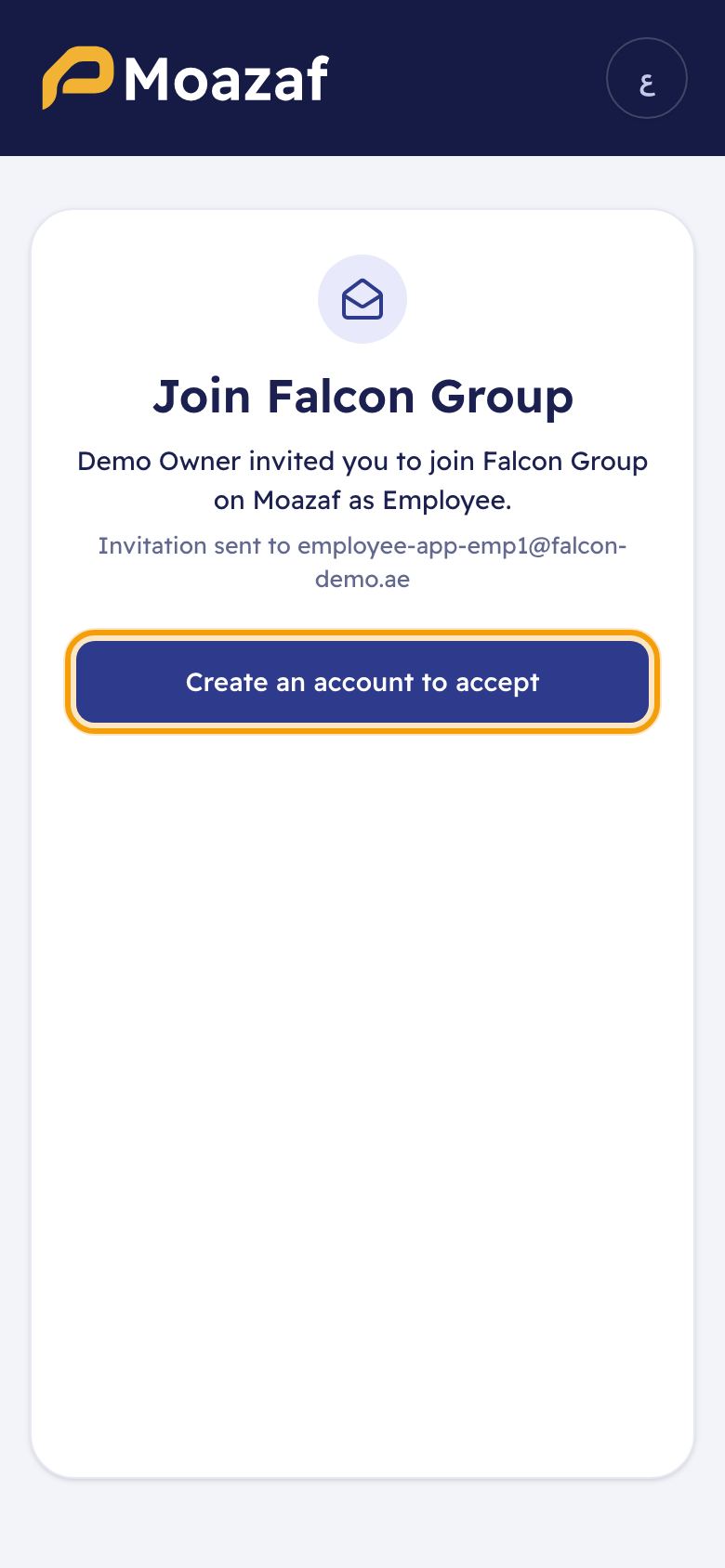
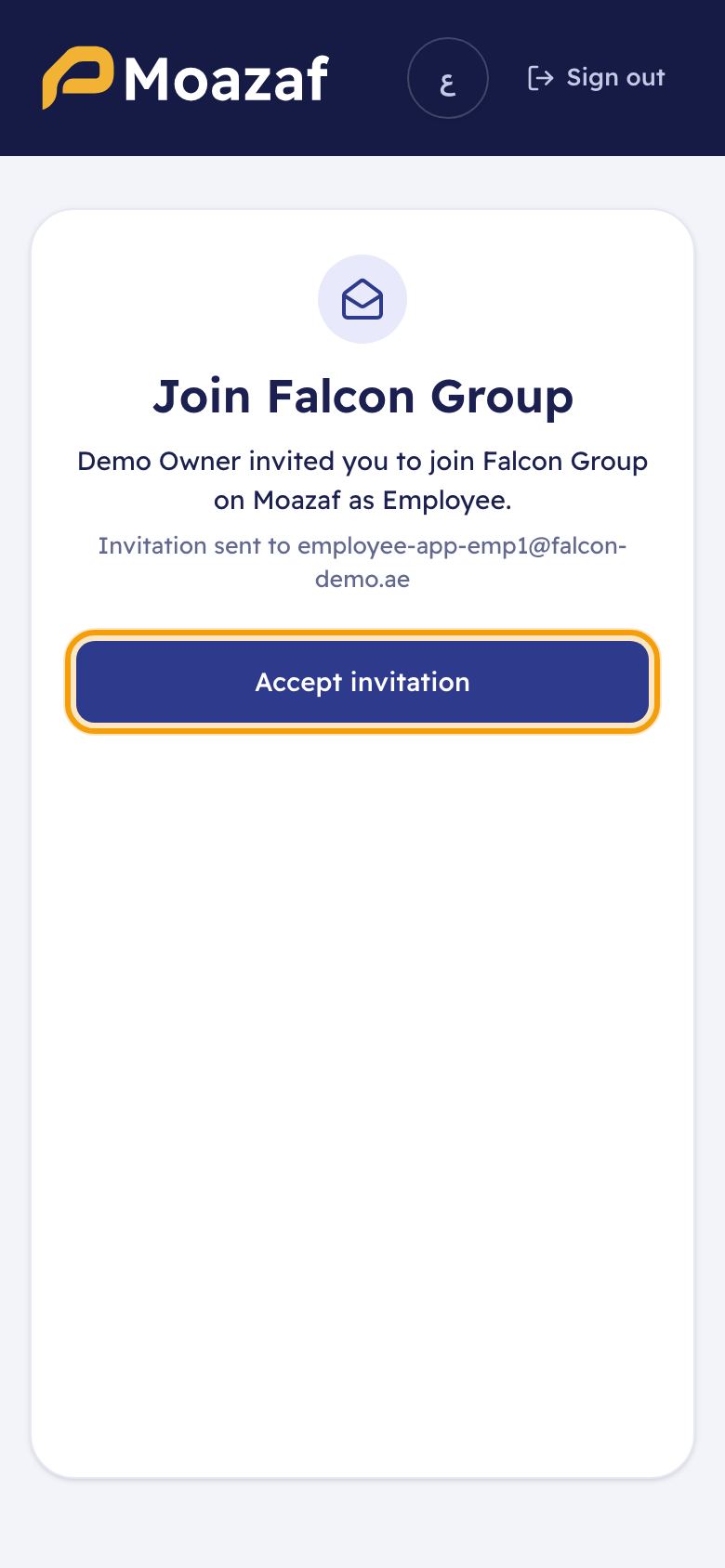
Next time, open Moazaf, type your email and password and tap Sign in. You land straight on your self-service home. If you forget your password, tap Forgot password? on the sign-in page.
Use the email address the invitation was sent to. If you are signed in with another account, the invitation page tells you and asks you to sign in with the right one.
For employees
3. Your home screen and check-in
Home shows what matters today. The tabs at the bottom take you to the rest: Home, Requests, Pay, Documents and Me.
- Check-in card (when your company uses attendance in Moazaf and your role allows it): choose your office and tap Check in when you start and Check out when you leave.
- Documents that need attention: your papers that have expired or expire soon.
- Annual leave: the days you have left, with Request leave.
- Last payslip: the month and the amount, with View payslip.
- Ask for something: shortcuts for Leave, Expense and Letter.
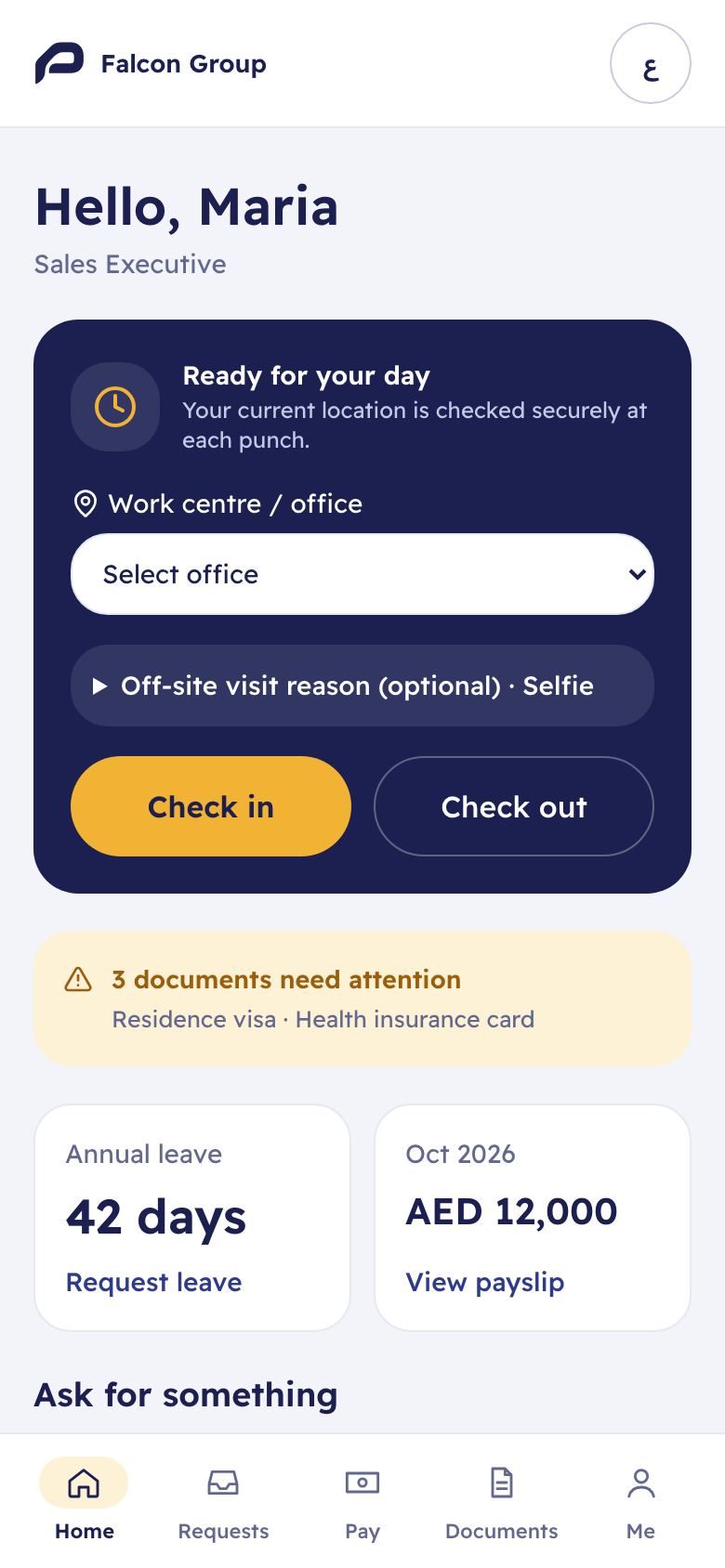
Check-in uses your location, and sometimes a selfie, depending on your company's settings. The full steps, and what to do when a check-in fails, are in the Attendance & check-in guide.
For employees
4. Your profile, changes and language
Me
Me shows your details as HR keeps them: employee number, company, department, manager, office, start date, work email, mobile and nationality. Your Emirates ID and passport numbers are hidden; tap the eye to show them.
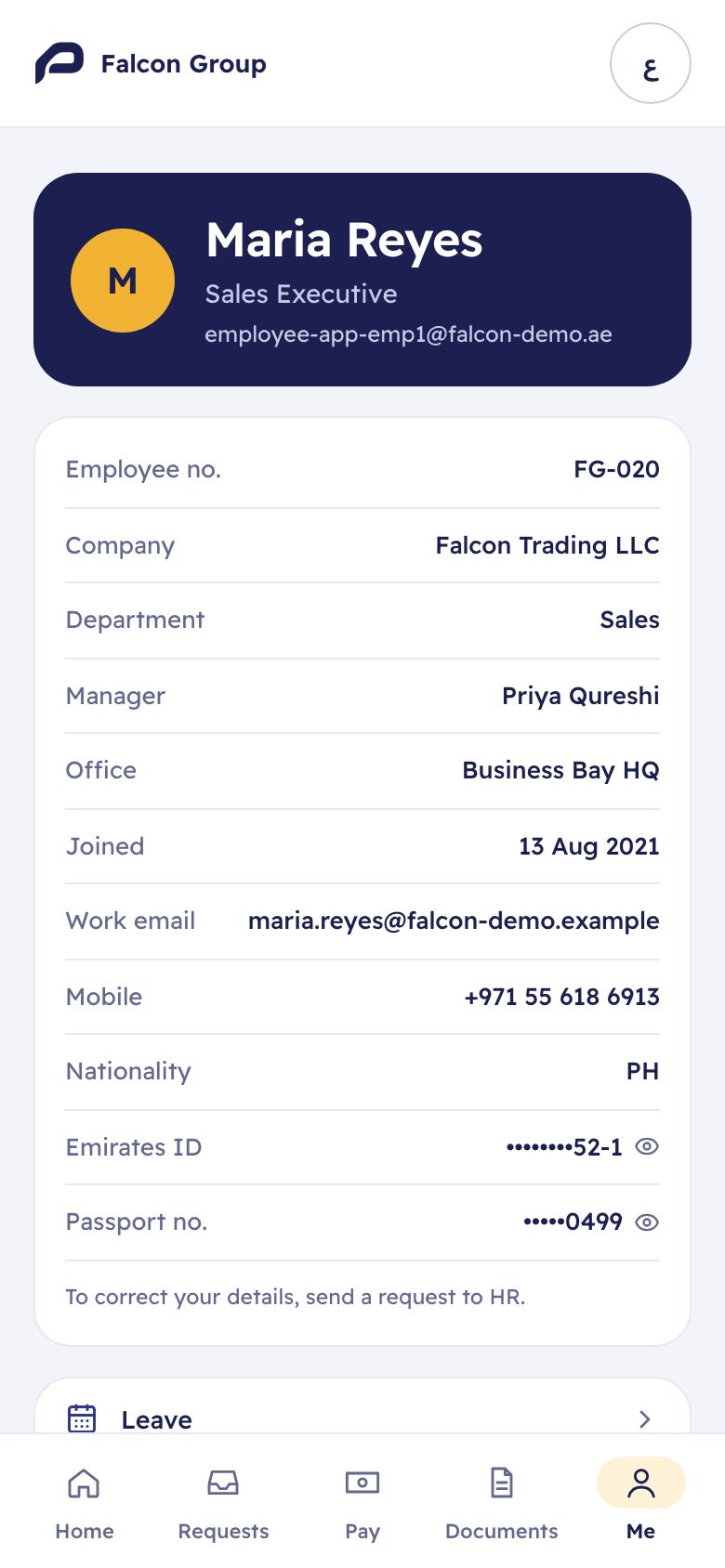
You cannot change these details yourself, and there is no special form for it. If something is wrong:
- Go to Requests and tap New request.
- Choose General request, give it a subject and write what needs to change, for example your new mobile number.
- For a renewed passport, Emirates ID or visa, use Scan a document in Documents instead (see below), so HR gets the new copy too. If your company does not have it, send a Document request and attach the new copy under Attachments.
By default a General request goes to your line manager, not straight to HR. If it is urgent, tell HR as well.
Further down, Me has links to Leave, My car & assets and Check-in, each shown only when your company and your role have it. Then come Notifications to get alerts on this phone, Language and Sign out. Notifications only shows when your company has browser notifications, and alerts only arrive if your browser supports them and you allow them.
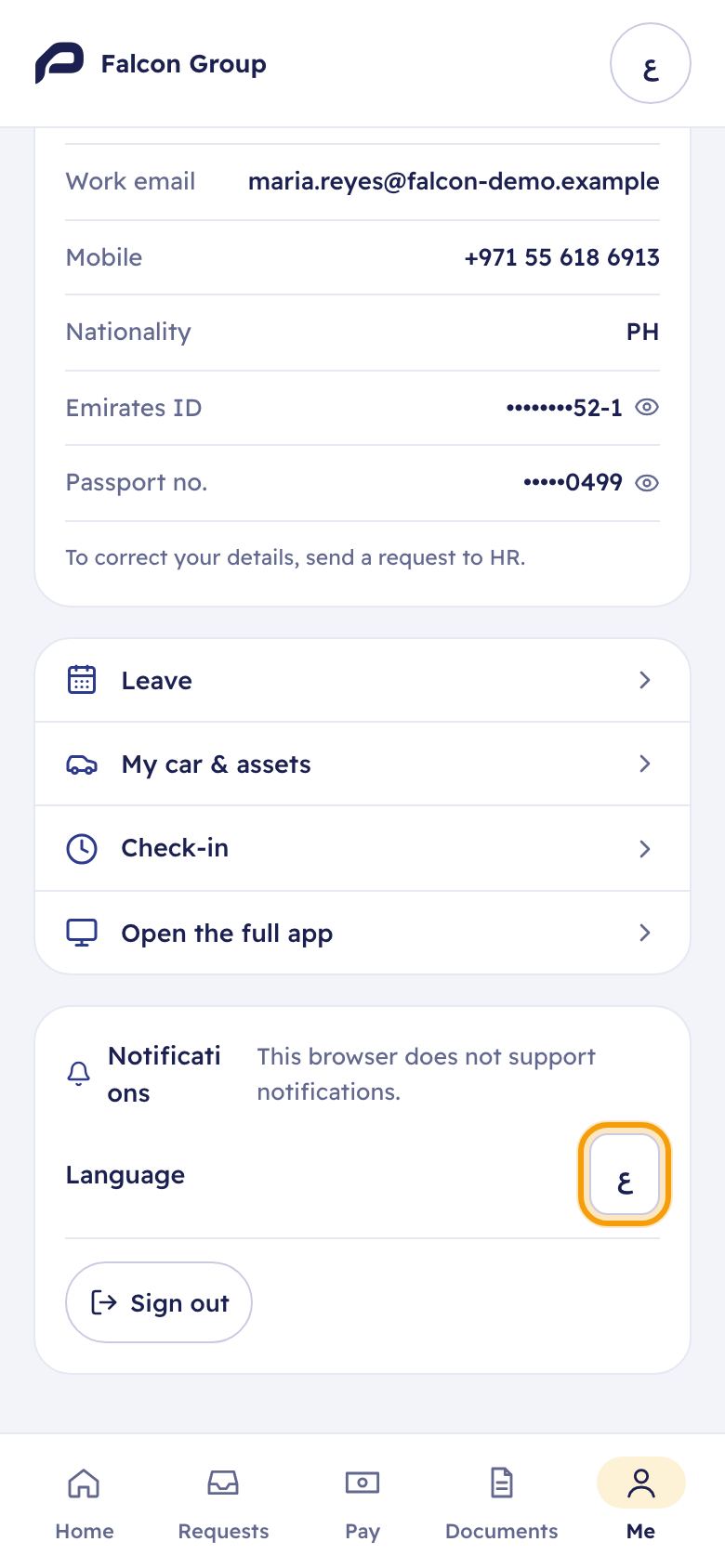
To switch between English and Arabic, tap the button next to Language, or the round button at the top of any screen. The whole app turns to Arabic (right to left) or English, and Moazaf remembers your choice.
For employees
5. Your documents
Documents lists your papers: passport, Emirates ID, visa, labour card, insurance card and others. Each one shows its number and a status: Valid, the days left before it expires, or expired. Tap a document to see its details and file.
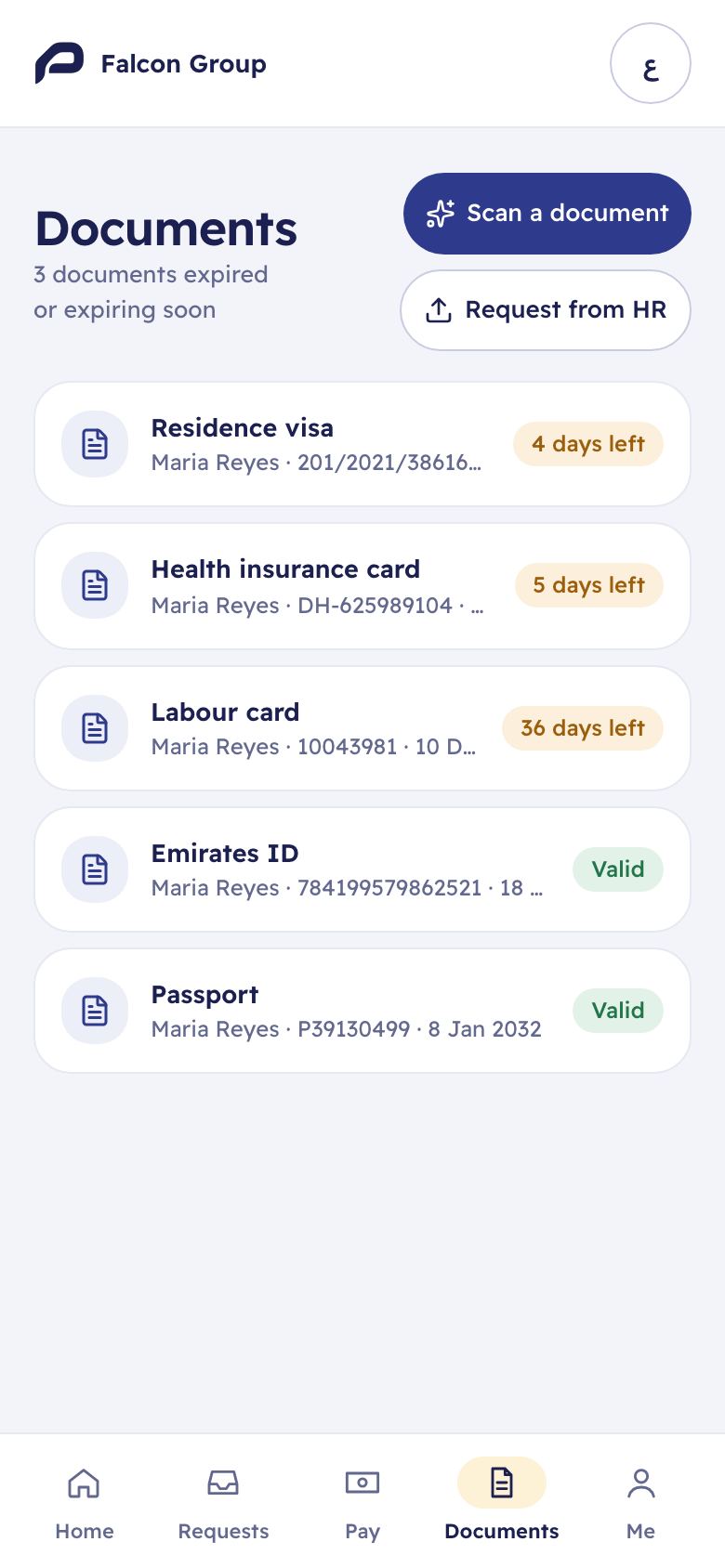
- Scan a document: renewed your passport, Emirates ID or visa? Take a photo or upload a PDF. Moazaf reads the details, you check them, and it goes to HR with your file. Nothing is sent until you confirm.
- Request from HR: send a Document request instead, for example to get your passport released or a copy of your visa or contract.
Scan a document only shows when your company has AI reading turned on. Otherwise the button is called Send a document and opens a Document request, where you attach the new copy under Attachments. HR always checks a document before your records change.
For employees
6. Leave balance and leave requests
Home › Request leave, or Me › Leave
The leave page shows your balance for each leave type, with the days still waiting for approval, and My leave requests with their status.
- Tap Request leave.
- Choose the Leave type, for example Annual leave.
- Pick the first and last day. Tick First day half or Last day half for half days.
- Add a reason if you like, then tap Submit.
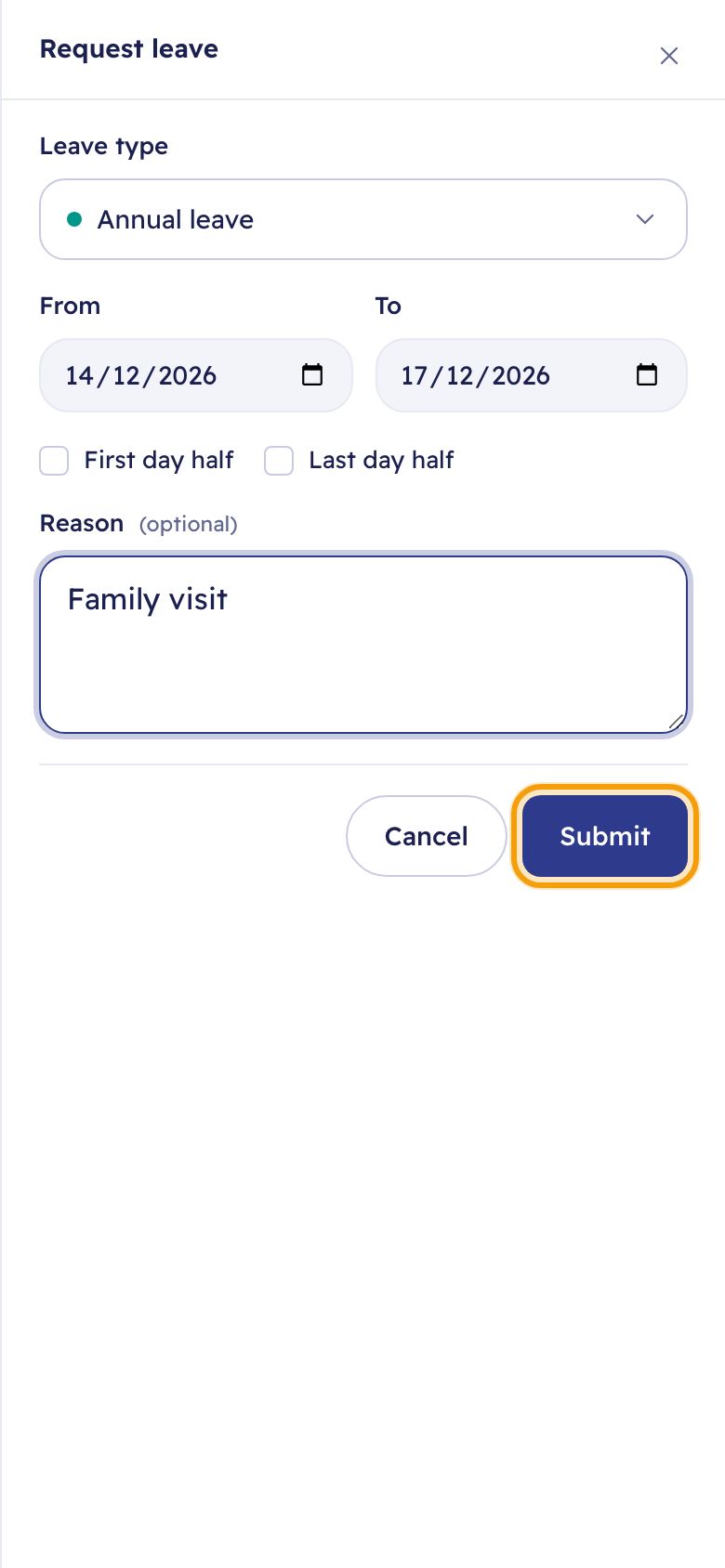
The request goes to your approver, by default your line manager. If your company's plan includes multi-step approvals, HR also reviews leave longer than 10 days, after your manager. You get a notification when it is approved or rejected.
Changed your plans? Tap Cancel request on a request that is still pending, or on approved leave that has not started yet. The days go back to your balance. If the request was still waiting for approval, the approver gets a notification; for approved leave, tell your manager yourself.
For employees
7. Payslips and pay
Pay
- Payslips: each payslip with its month and net amount. You may have more than one for the same month, for example from a second payroll run. A new one is marked New. Tap Download PDF to keep or share it.
- Loans: your loans and salary advances, what you still owe and the next deduction, with a form to ask for a new one.
- Leave pay: leave salary paid to you in advance of your leave, and how much of it has been recovered.
- Expenses: your expense claims and their status, with the form to send a new one.
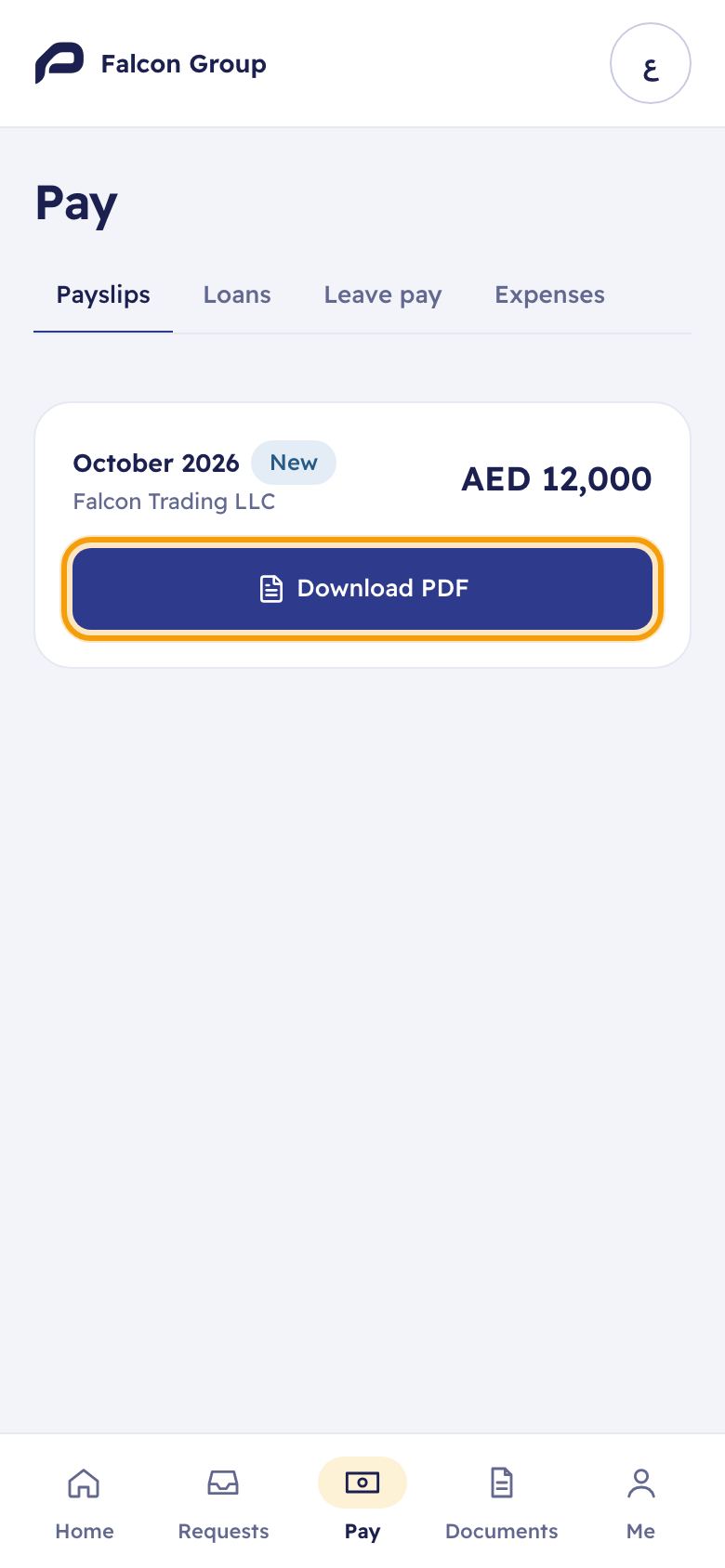
A payslip appears once HR has closed the payroll for that month. Payslips, loans and expense claims come with the payroll add-on; if your company does not have it, the tab says so.
For employees
8. Requests and letters
Requests
Requests holds everything you have asked for, with its status. Tap New request to pick a type: by default Leave, Letter request, Asset request, Document request, Attendance regularisation and General request. Your company can change this list.
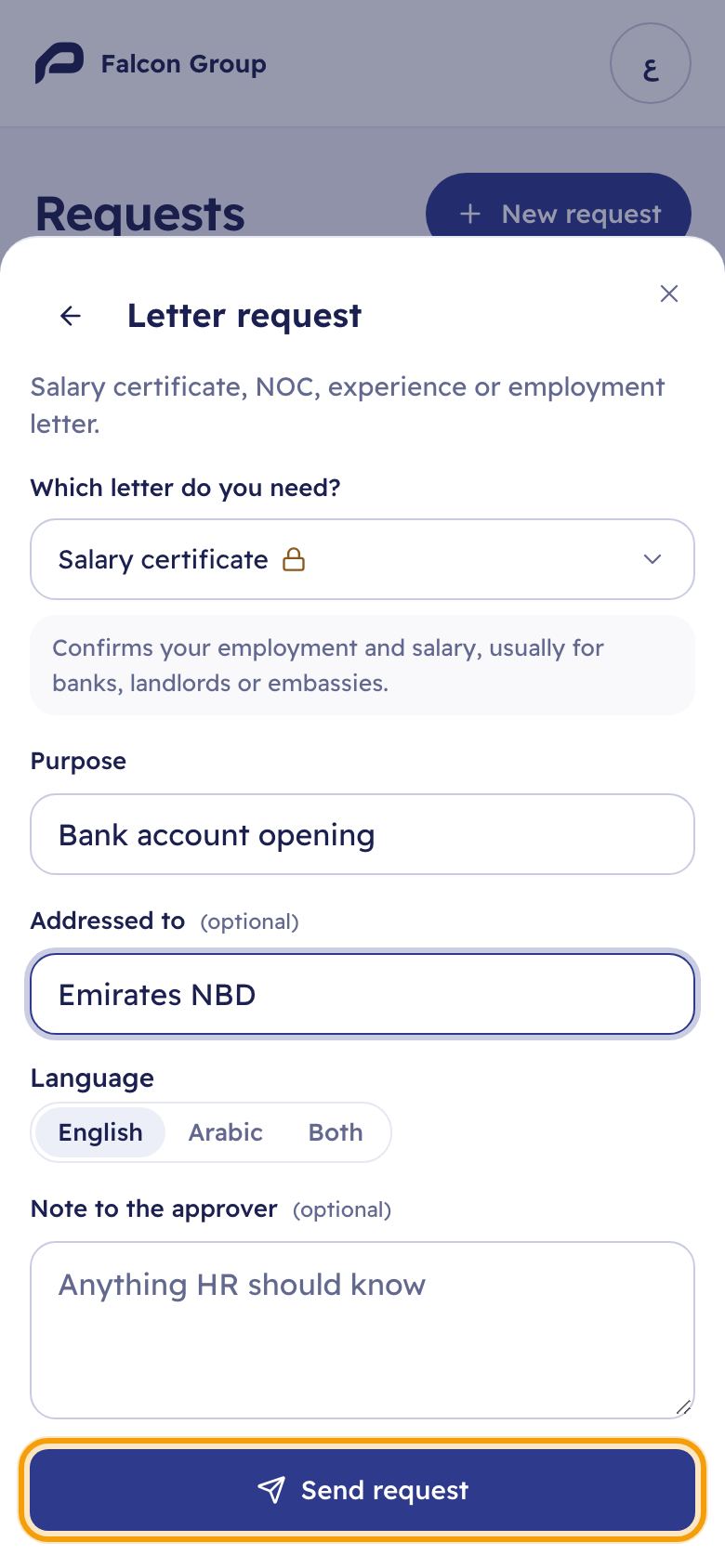
- Tap New request and choose Letter request, or tap Letter on Home.
- Under Which letter do you need?, pick the letter, for example Salary certificate.
- Fill in the Purpose and, if you know it, who the letter is addressed to.
- Choose English, Arabic or both, then tap Send request.
Tap any request to see its approval steps and who has acted and when. While it is still waiting, you can add a comment or Withdraw it.
After a letter request is approved, the letter is issued straight away if nothing needs filling in and the approver is allowed to issue it. Otherwise it waits as a draft until someone allowed to issue letters completes and issues it. A Salary certificate is always a draft first: someone must fill in the salary, and only people who can see salaries may issue it. When the letter is issued, you get a notification and an email with a link to open and download it.
9. Questions
The invitation link says it has expired.
- Answer
- Invitations last 7 days. Ask HR to send a new one with Invite to app on your profile; you get a new email.
I never got the invitation email.
- Answer
- Check your spam folder and the address HR used. HR can see it on your profile and send it again.
Can I use Moazaf on my computer too?
- Answer
- Yes. Self-service works in any browser, on the phone or the computer, with the same email and password.
My name or mobile number is wrong.
- Answer
- Send a General request from Requests saying what to change, and let HR know. Only staff whose role allows editing employees can change your profile: by default the Owner, Admin and HR Manager.
I can't find my payslip.
- Answer
- Payslips appear once the month's payroll is closed, and only if your company uses Moazaf payroll.
Who approves my requests?
- Answer
- The approvers your company set for each request type. Open the request to see every step and where it is now.
My check-in does not work.
- Answer
- See the Attendance & check-in guide for location, offices and corrections.
Still need help?
Email our support team. Tell us your company name and what you were trying to do.
support@moazaf.com