
Requests & approvals
Request types, approval steps, delegation and getting requests done.
Checked against the app on Wednesday, November 4, 2026
1. How requests work
A request is anything someone asks the company for: a letter, an asset, a parking permit, money back for an expense, a salary advance. Each kind is a request type with its own form. When someone sends a request, Moazaf works out who must approve it, step by step, and puts it in their inbox. The approvers of each step get a notification and an email when the step reaches them. The requester is told when the request is approved or rejected, and can follow each step in their own app.
Approvals
- Waiting on me: requests where you are the approver of the current step, including ones delegated to you.
- My requests: requests you raised, or that were raised for you.
- All requests: every request you are allowed to see. Shown when your role sees requests beyond your own.
- History: requests you approved or rejected.
Owner, Admin
- What they can do with requests
- Everything, including request types, approval flows and everyone's delegations.
HR Manager, Fleet Manager
- What they can do with requests
- See every request, raise requests for any employee (except expense claims for others, which need Finance or Payroll Admin) and approve the steps given to their role.
Payroll Admin, Finance, PRO / Documents Officer
- What they can do with requests
- See every request and approve the steps given to their role (for example Finance for large expenses).
Line Manager
- What they can do with requests
- Sees and approves the requests of their own team, and raises their own.
Employee
- What they can do with requests
- Raises their own requests in the app and follows them.
Leave requests follow the leave permissions and payroll approvals follow the payroll permissions, so a role can see one without the other. Requests need the Requests module on your plan. Payroll run approvals come with the Payroll add-on instead.
For HR and administrators
2. Request types
A new workspace starts with the request types below. You can rename them, change their approvers and their form, or switch them off. The form of leave and letter requests is not edited here: it comes from the leave settings and the letter templates. A type's category stays the same, because the category decides what happens after approval (an expense is paid back, a loan is passed to payroll, an asset is handed over).
Settings › Request types & approvals › Request types
Leave
- Approved by (out of the box)
- Line manager, then HR Manager only when the leave is over 10 days.
Letter request
- Approved by (out of the box)
- HR Manager.
Expense claim
- Approved by (out of the box)
- Line manager, then Finance only when the amount is over AED 1,000. A receipt is required.
Salary advance, Loan
- Approved by (out of the box)
- Line manager, then Payroll Admin.
Asset request
- Approved by (out of the box)
- Line manager, then Fleet Manager.
Document request
- Approved by (out of the box)
- PRO / Documents Officer.
Attendance regularisation, General request
- Approved by (out of the box)
- Line manager.
Payroll run approval, Job change approval, Salary change approval
- Approved by (out of the box)
- Payroll run: in a new workspace, the workspace owner (the owner can change this under Settings › Governance › Payroll approvers). Job change: HR Manager. Salary change: Finance or Payroll Admin. The app raises these itself when someone sends a payroll run for approval, or changes a salary or a job while that is turned on under Approval for people changes on the same page.
Click a type to open it. On its page you set:
- Available in self-service: employees can raise it for themselves.
- Attachments: No attachments, Optional or Required.
- Form fields: what people fill in. Amount fields are in AED.
- Active: inactive types can no longer be requested; existing requests are kept.
Need something that is not on the list, like a training request? Click New request type. It starts with one line manager approval, which you can change.
For HR and administrators
3. Approval steps and who approves
Under each request type, an approval flow lists the steps in order. Steps run one after the other: the next step starts when the previous one is approved, and a rejection ends the request. Click the pencil next to a flow to change it, or New flow to route some people differently, for example one company or one department.
In each step, Who approves can be:
- Line manager: the manager on the employee's profile.
- Manager's manager: the manager one level up.
- Department head: the head of the employee's department.
- Members with a role: every active member with one of the roles you pick who may also approve this kind of request for that employee, for example Finance.
- Specific people: named members of the workspace.
Each step also has:
- Decision: Any one approver finishes the step with the first approval. Everyone must approve waits for every approver in the step; if the step went to fallback approvers or was escalated, one approval from them is enough.
- Only run this step when…: run the step only for an amount or a number of days above or below a value, for example expenses over AED 1,000. Without a condition the step always runs.
- Reminder after (hours): when the step is still waiting after this time, the approvers get a reminder.
- Escalate after (hours) and Escalate to: the extra time after the reminder before the step goes to someone else as well. By default that is Members who manage requests. If Reminder after (hours) is empty, the escalation time counts from when the step started.
A flow's Applies to filters choose who it is for (company, department, and leave type for leave). Leave a filter empty to match everyone. When several flows match, the one with the lowest Priority number wins.
Every approver must be allowed to approve that kind of request for the employee; anyone who is not is left out. The person who raised a request, and the employee it is for, are not its approvers, except for payroll runs and expense claims when the owner has turned off Require independent payroll approval or Require independent expense approval under Settings › Governance (new workspaces start with both on). If nobody can be found for a step (for example the line manager has no login), it goes to members who can approve this kind of request, then to the workspace owners.
Flows with more than one step need a plan that includes multi-step approvals. On other plans, only the first step whose condition fits the request runs.
For managers
4. The approvals inbox
When a step is given to you, you get a notification and an email. When a colleague delegates their approvals to you, you get a notification; the requests delegated to you then show in your inbox without a notification each. Open Approvals to see everything waiting on you. Use the search box to find a person, an employee number or a request number.
Approvals › Waiting on me
- Click a request. Its details open with the form, the files, the Approval path (every step, with the approvers of the steps that have started) and, once there is a comment, reminder, escalation or cancellation, the Activity.
- Type an optional note to the employee in Comment.
- Click Approve or Reject. The request moves to the next step, or it is finished.
When the last step is approved, the requester is told by notification and email. The same happens when it is rejected. An approved request then does its job: an expense claim is ready to be paid back, a loan or salary advance is created and gets its instalments when the payroll team records the payout, a letter is made from its template.
- To decide several at once, tick them in Waiting on me and click Approve or Reject in the bar that appears below the list.
- Approved asset and document requests also go to To fulfil, the list of handovers and document tasks still to do.
- Need to raise a request yourself or for someone else? Click New request and choose a type. If you may raise requests for others, pick the person in For employee. A letter asked for from this window is always for yourself.
For managers
5. Delegation while you are away
Going on leave? Hand your approvals to a colleague for those dates so nothing waits for you. You keep access too.
Approvals › Delegation: off
- Click Delegation: off at the top of the Approvals page.
- In Delegate to, choose the colleague.
- Set From and Until, and a Reason if you like (for example annual leave).
- Click Start delegation.
- While it runs, the requests waiting on you also show in your colleague's Waiting on me, with a line saying who delegated to them and until when, and your colleague gets a notification when you start it. Choose a colleague who may approve these requests themselves: Moazaf refuses a colleague whose role cannot approve them, because delegation does not give them that permission. Requests they may not approve for a given employee stay with you only.
- The button then shows who you delegate to. Open it and click End to stop early.
- Owners and admins see every running and scheduled delegation under Settings › Request types & approvals › Delegations, and can end any of them.
Your delegations cannot overlap: end the current one before you start another for the same days.
For employees
7. The employee side
Employees with a login raise and follow their requests in the employee app, on their phone or computer.
Requests › New request
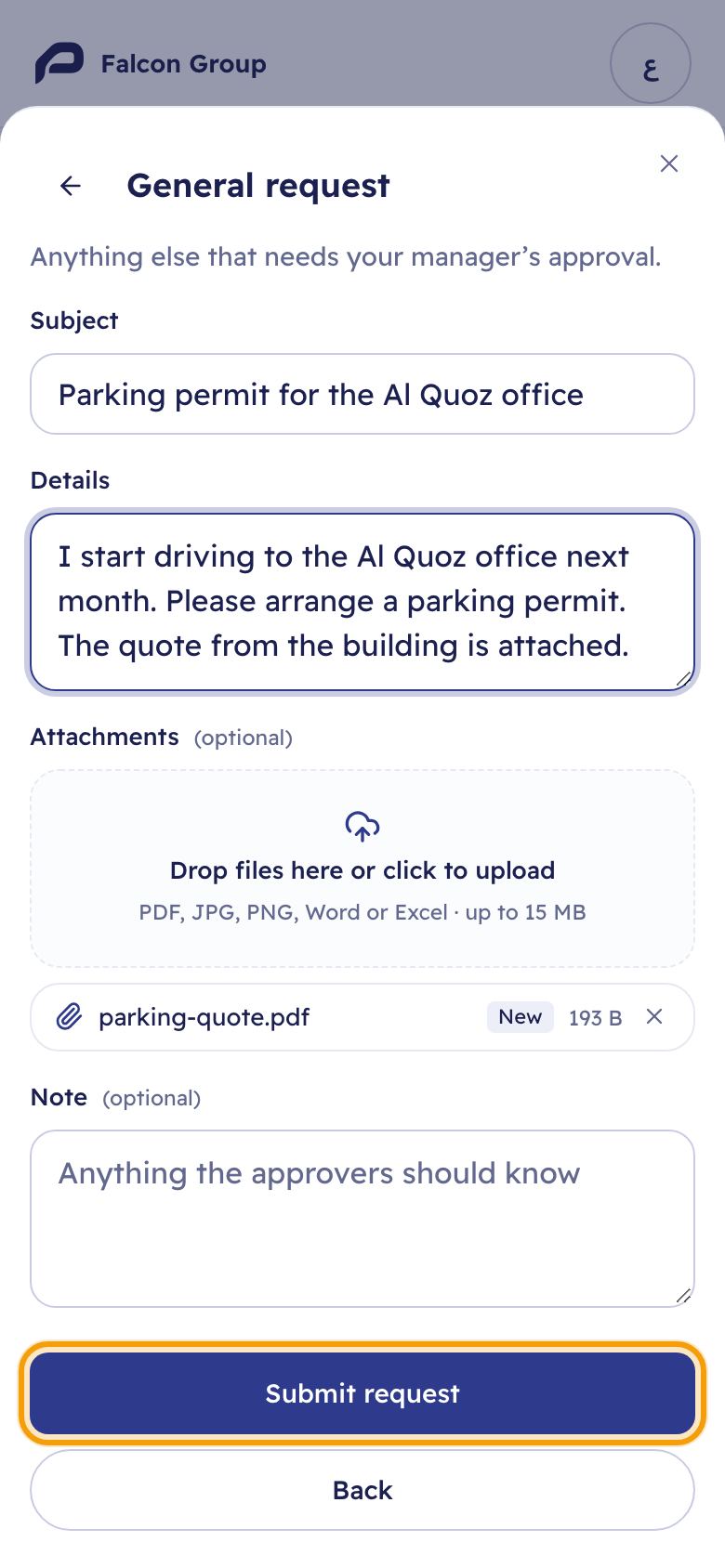
- Tap New request and choose what you need.
- Fill in the form and add a file if the type asks for one. The note is for anything the approvers should know.
- Tap Submit request.
The request then shows in My requests with its status. Open it to see the Approval path, who it is waiting on, and the comments.
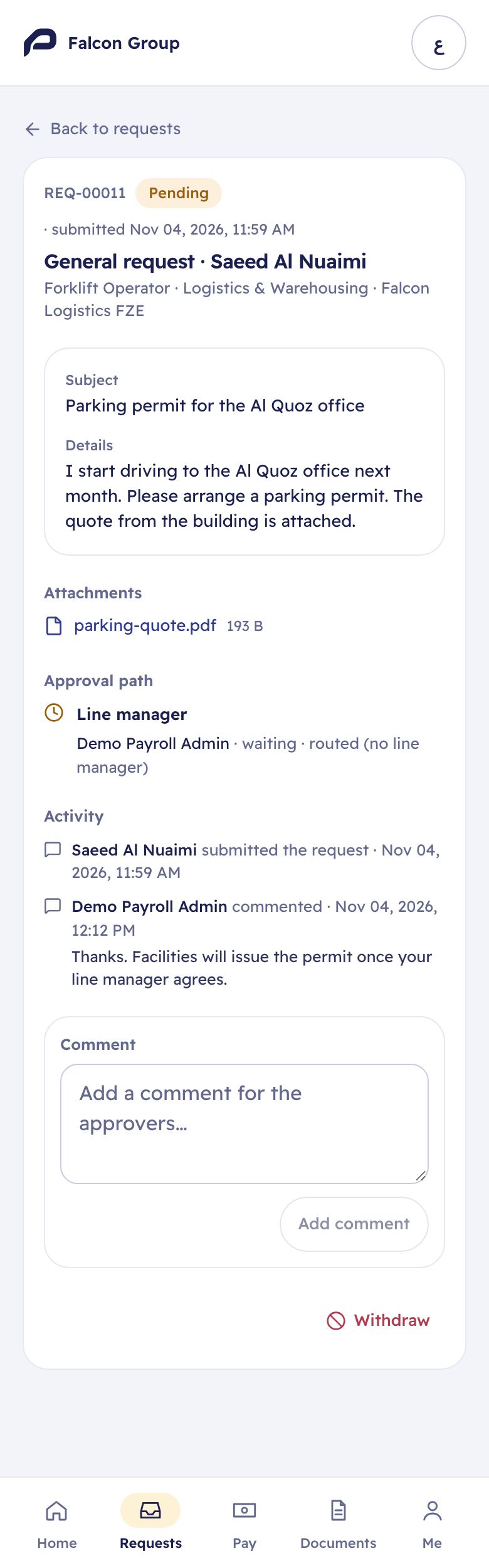
- While it is pending, the employee can Withdraw it. Approvers no longer see it in their inbox.
- Approved leave can still be cancelled by the employee until the leave starts. Other approved requests cannot be cancelled by the employee: ask an owner or admin (for a loan or salary advance, the payroll team).
- Expenses, loans and salary advances are not in this list: they have their own forms in the Pay tab. Letter requests show only when HR has set up letter templates. Leave is in the list, with its own form that checks the balance.
- A line manager who uses the employee app also has an Approvals list on the same tab, with the requests waiting on them.
8. Questions
A request went to someone other than the line manager. Why?
- Answer
- The step could not find its approver, usually because the employee has no line manager on their profile or the manager has no login. The step then shows routed (no line manager) and goes to members who can approve that kind of request, and last to the owners. Set the line manager or invite them.
Can I approve my own request?
- Answer
- Usually not: the person who raised a request, and the employee it is for, are not its approvers, even an owner. The exception is payroll runs and expense claims when an owner turns independent approval off under Settings › Governance; new workspaces start with it on.
Someone is away and requests are stuck. What can I do?
- Answer
- They can delegate their approvals before they leave. An owner or admin can see delegations under Delegations. Steps with escalation hours also go to the Escalate to people (by default the members who manage requests) once the escalation time has passed, counted from the reminder time, or from the start of the step when no reminder is set.
Can the employee change a request after sending it?
- Answer
- No. They withdraw it while it is pending and send a new one.
I changed a flow. What happens to requests already waiting?
- Answer
- They keep the steps they started with. The new flow is used for requests sent from now on.
Who sees a request?
- Answer
- The requester, the employee it is for, its approvers and their delegates, and members whose role lets them see requests for that employee's company and department.
Something does not look right?
- Answer
- Write to support@moazaf.com with the request number.
Still need help?
Email our support team. Tell us your company name and what you were trying to do.
support@moazaf.com
6. Comments and attachments
While a request is pending, the requester and the approvers can talk on it. Type in the comment box and click Add comment; an approver clicks Comment only to ask a question without deciding. The approvers of the current step and the requester get a notification. Once there is a comment, reminder, escalation or cancellation, Activity appears and lists every event on the request with its time.
Files are added when the request is raised. Each request type says whether files are not allowed, optional or required (an expense claim needs its receipt). The files are listed under Attachments in the request, for everyone who can open it.
A file cannot be added after sending. If the approver needs one more document, they can ask in a comment; the employee withdraws the request and sends it again with the file.