
Expenses
Employees claim back money they spent for work: they attach the receipt, an approver checks it, and the money is paid back with the salary or directly by finance.
Checked against the app on Wednesday, November 4, 2026
1. How expense claims work
An expense claim is money an employee paid from their own pocket for work: a taxi to a client, fuel, a government fee, lunch with a supplier. The employee files the claim with the receipt, it goes to approval like any other request, and once it is approved the company pays it back.
- Pending: the claim is waiting for the approvers.
- Approved: the approvers said yes and the claim is waiting to be paid back.
- In payroll: the claim is inside a payroll run that is not closed yet.
- Paid: the money was paid back, with the salary or directly by finance.
- Rejected or Cancelled: the claim will not be paid.
There are two ways to pay a claim back. Via payroll adds the amount to the employee's next monthly salary. Paid directly means finance pays it outside payroll, for example by bank transfer or cash, and records the payment in Moazaf.
Expense claims are part of the Payroll module. If your plan does not include payroll, claims already filed stay viewable read-only on the Expenses page, with a note at the top, but nobody can file, approve or pay a claim until your plan includes payroll again.
For HR and administrators
2. Set up expense categories
Every claim has a category. Categories decide whether a receipt is needed and how much one claim can be. Moazaf starts you with seven: Fuel, Travel & transport, Meals & entertainment, Office supplies, Government fees, Mileage and Other. All of them need a receipt except Mileage, which pays AED 0.50 per km.
Payroll › Settings › Expense categories
- Click New category to add one, or Edit beside a category to change it.
- Fill Code, Name (English) and Name (Arabic). Employees see the name in their own language.
- Set Limit per claim (AED) if one claim should never be above an amount. Leave it empty for no limit.
- Leave Receipt required on if employees must attach a receipt.
- For car trips, turn on Mileage category and set Rate per km (AED). The employee then types the kilometres and Moazaf works out the amount.
- You can also fill GL account. When a claim in this category is paid with the salary, the payroll journal debits this account for it. Leave it empty to use the account of the Expense reimbursement pay item.
- Click Save category.
A category can't be deleted, but you can turn off Active. It disappears from new claims and old claims keep it. Tick Show inactive to see it again.
Only the Owner and the Payroll Admin can change categories.
For employees
3. File an expense claim
Employees file claims from self-service, on the phone or the computer. Do it soon after you spend the money, while you still have the receipt.
Self-service › Pay › Expenses › New claim
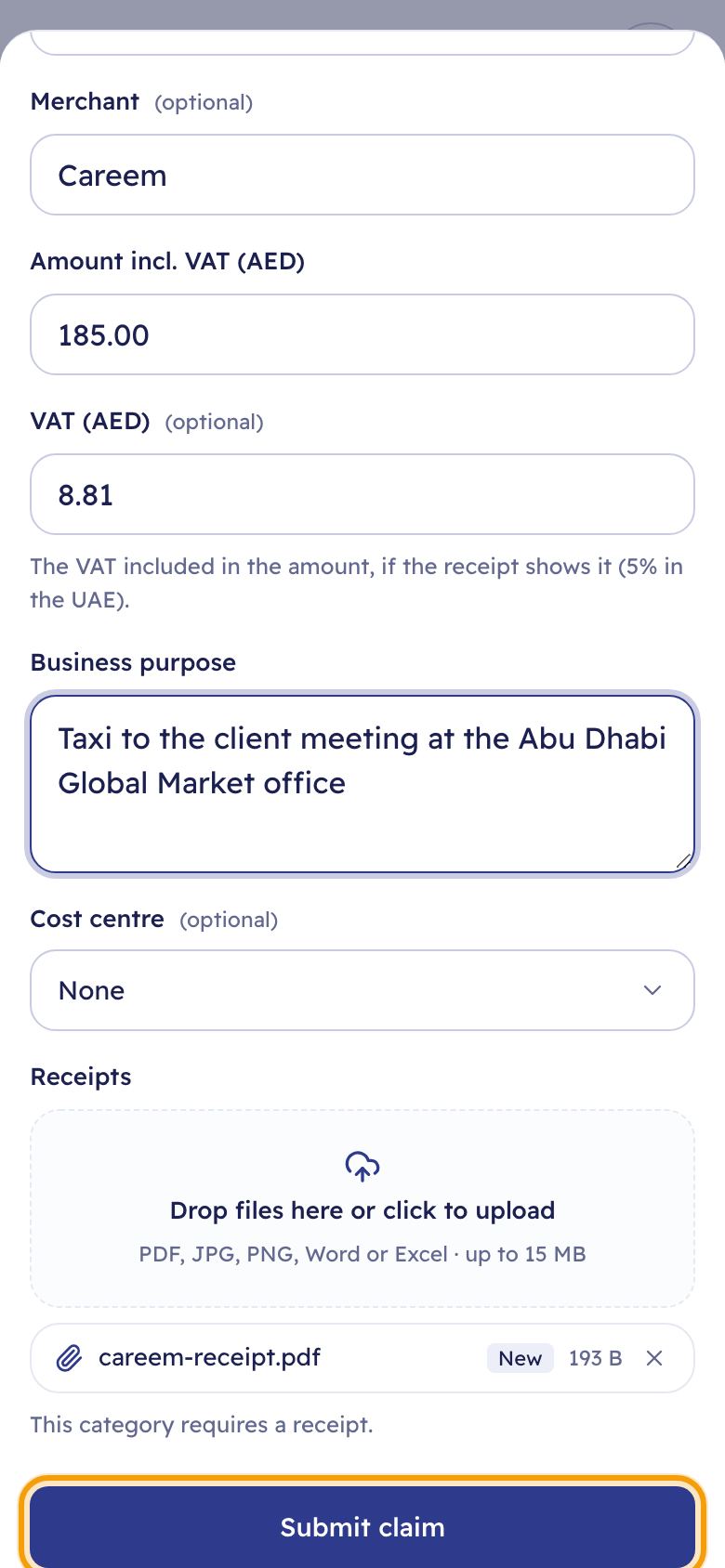
- Pick the Category. Under it you see the limit for one claim and whether a receipt is needed.
- Check the Date of expense. It can't be in the future.
- Type the Merchant, for example the taxi company or the restaurant.
- Type the Amount incl. VAT (AED) and, if the receipt shows VAT, the VAT (AED). The VAT can't be more than the amount.
- Write the Business purpose: what the money was for and who it was with.
- Add the receipt under Receipts. A photo or a PDF both work.
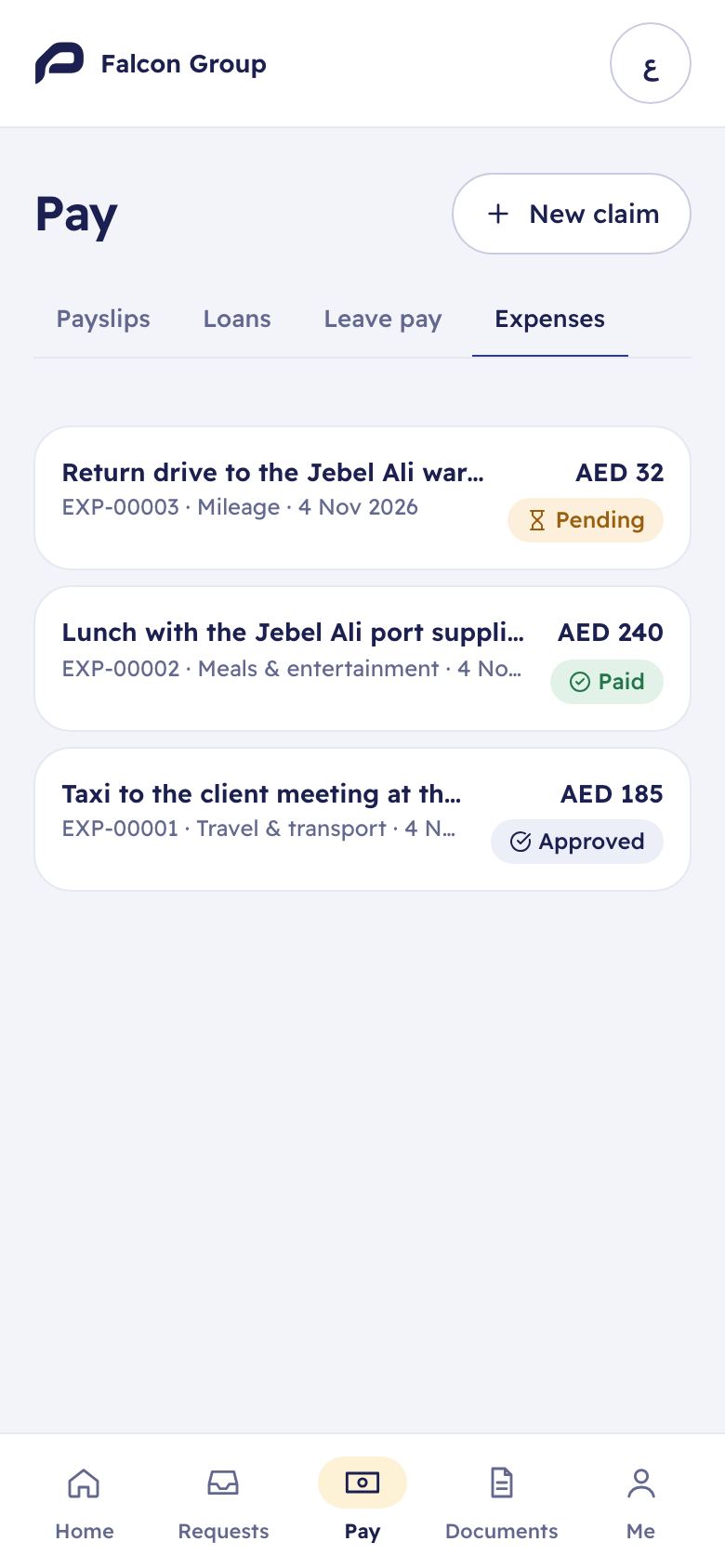
- Click Submit claim. The claim goes to approval and shows as Pending.
If your plan includes AI, use Scan receipt at the top of the form: click Scan, upload a photo of the receipt, check what it found and click Apply to form. It fills the date, merchant, amount and VAT and attaches the receipt for you.
For a car trip, pick the Mileage category and type the Distance (km) instead of an amount. Moazaf shows the Amount to reimburse: the kilometres times the rate per km.
Your claims and where each one is are on the same tab. Tap a claim to open its request and see every approval step.
If a category has a limit, a claim above it can't be submitted. Don't split one bill into smaller claims; talk to your manager or finance instead.
The Owner, Admin, Payroll Admin and Finance can file a claim for an employee they manage, from Expenses › New claim by choosing the Employee. The HR Manager can't. They can also choose how the claim is paid under Reimburse. A claim an employee files is paid via payroll unless finance changes it.
For managers
4. Approve or reject a claim
A claim is an Expense claim request, so it goes through the same approvals as any other request. By default the employee's line manager approves it. If your plan includes multi-step approvals, claims above AED 1,000 then go to Finance as a second step. If the employee has no line manager, the first step goes to the people who may approve expense claims for the whole company, such as the Payroll Admin, or to the Owner if there is nobody else. Your company can change these steps in Settings › Request types & approvals.
Approvals
You can also open the request from the claim's page: under Approval, click Open request.
- Open the request. Check the amount, the category, the business purpose and the receipt.
- Click Approve. To reject, first write the reason under Comment, then click Reject.
- After the last approval the claim becomes Approved. A rejected claim becomes Rejected and is never paid.
The employee can Withdraw the request while the claim is still pending, for example if they filed it twice.
For HR and administrators
5. Pay a claim back
An approved claim is paid back in one of two ways. The claim's page shows which one under Reimbursement and what happens next.
Expenses › the claim
Via payroll. You don't need to do anything. When the payroll run for the employee's company is calculated, Moazaf adds every approved claim paid via payroll whose date of expense is on or before the last day of the period. Each one appears on the payslip as Expense reimbursement and is paid with the salary, and the claim becomes In payroll. When the run is closed, the claim becomes Paid.
- Claims dated after the end of the period wait for the next month's run.
- If a draft run is deleted, its claims go back to Approved straight away. If you set a reimbursement line to zero, the claim stays In payroll until the run is closed, then goes back to Approved and waits for the next run.
- In the run, a reimbursement is paid in full or not at all this month. It can't be paid in part.
Paid directly. Pay the employee by bank transfer or cash, then record it in Moazaf:
- Open the claim and click Mark as paid directly.
- Check Paid on and type the Payment reference, for example the bank transfer number.
- Click Mark as paid. The claim becomes Paid and never goes to payroll.
To move a claim from one way to the other, click Pay directly instead or Pay via payroll instead on its page. This works while the claim is pending or approved.
Only the Owner, Admin, Payroll Admin and Finance can pay claims or change how they are paid. By default nobody can do it for their own claim or a claim they filed. The workspace owner can turn this off for new claims with Require independent expense approval in Settings › Governance.
For HR and administrators
6. Follow all claims
The Expenses page shows every claim you are allowed to see. The cards at the top count what is Pending approval, Approved, to be paid and Paid this month.
Expenses
- Filter by Status, Pay method, Category, Employee or dates, or search by employee, merchant or description.
- If you can see other people's claims and your login is linked to an employee, the page has two tabs: My claims for your own claims and Team & company claims for every claim you may see, your own included.
- Line managers see their team's claims. The Owner, Admin, Payroll Admin and Finance see everyone's.
For HR and administrators
7. Export claims
Approved claims are also costs. As soon as a claim is approved, Moazaf adds it to the cost ledger under Employee expenses, on the date of the expense, with its VAT, company, employee and cost centre. If the claim is cancelled later, the cost is removed. The ledger is where you export claims, for example for your accountant.
Costs › Ledger
- Set Category to Employee expenses.
- Narrow it down by company, dates or cost centre if you need to.
- Click Export Excel. The file has up to 10,000 rows that match your filters. For more, export shorter date ranges one at a time.
The ledger has approved, in-payroll and paid claims. Pending and rejected claims are not costs, so they are not in the export. The Costs page needs the Costs module in your plan.
8. Questions
The Submit claim button does nothing or stays grey.
- Answer
- Check that the category, date, amount and business purpose are filled, that the receipt is attached if the category needs one, and that the amount is not above the category's limit.
I can't find the category I need.
- Answer
- Pick Other and explain in the business purpose, or ask your payroll admin to add the category.
My claim was approved. When do I get the money?
- Answer
- If it is paid via payroll, with the next monthly salary. If it is paid directly, when finance pays it. The claim says which.
My claim is approved but not in this month's payroll.
- Answer
- Check the date of expense and how it is paid: a claim dated after the end of the payroll period waits for next month, and a claim paid directly never goes to payroll. If the claim was approved after this month's run was calculated, the draft run shows a banner asking your payroll admin to click Recalculate, and the run can't be submitted until they do.
Can I change a claim after I submitted it?
- Answer
- No. Withdraw it while it is still pending and file a new one.
Can a claim be cancelled once it is in payroll?
- Answer
- Only while the run is still a draft. After the run is sent for approval it can't, and a paid claim can never be cancelled.
Mark as paid directly shows an error.
- Answer
- The message says why. A claim can be paid directly only after its approval is recorded. By default, someone other than the employee and the person who filed it must have approved it, and you can't record the payment for your own claim or one you filed. Ask another finance or payroll person to record the payment. The workspace owner can turn off Require independent expense approval for new claims.
Does the reimbursement count as salary?
- Answer
- No. It is money paid back, so it does not change the basic salary that gratuity and leave pay use.
Still need help?
Email our support team. Tell us your company name and what you were trying to do.
support@moazaf.com