
Payroll & WPS
Salaries, running payroll, the WPS file, payslips, loans and end of service.
Checked against the app on Wednesday, November 4, 2026
For HR and administrators
1. What payroll does and who uses it
Moazaf runs your monthly payroll per company. You set each employee's salary once. Every month you create a payroll run: Moazaf pulls in salaries, joiners and leavers, unpaid leave, attendance, loan instalments, traffic fines and expense claims for you. You review the figures, your payroll approver approves them, and you download the WPS salary file to upload to your bank. When the run is closed, employees get their payslips.
Payroll (left menu, under Time & money)
- Payroll runs: the monthly runs of each company and their status.
- Salaries: the current salary and payment method of every active employee.
- Loans & advances: loans and salary advances recovered through payroll.
- End of service: final settlements for leavers, with the gratuity worked out for you.
- Reports and Settings: payroll reports, and each company's pay day and payroll policy.
Owner
- What they can do in payroll
- Everything, including approving runs.
Payroll Admin
- What they can do in payroll
- Salaries, payroll runs, WPS files, loans and end of service.
Finance
- What they can do in payroll
- Views payroll.
Admin, HR Manager
- What they can do in payroll
- No payroll access unless you add it to their role.
Employee
- What they can do in payroll
- Only their own payslips, loans and settlement, in self-service.
Payroll is an add-on. If your plan does not include it, records already in Payroll (runs, payslips, payment files, loans and settlements) stay viewable read-only, with a note at the top, but nothing can be added, changed, approved or paid until your plan includes payroll again. The payroll Settings tab shows Payroll is not in your plan with a See plans button.
For HR and administrators
2. Set up each employee's salary
Moazaf needs a salary to work out an employee's regular monthly pay. The Salaries tab lists every active employee with their basic salary, allowances, monthly total and how they are paid. A banner at the top tells you how many people have no salary yet. They still appear in the run, with a warning, and can still get other items such as a bonus.
Payroll › Salaries
- Click the employee's name to open their profile, then open the Payroll tab. (You can also click Set salary or Change salary on the row.)
- Click Change salary (or Set salary for a first salary).
- Choose Effective from and a Reason, for example Increment or New hire.
- Under Salary components enter the monthly amounts. Basic salary is required: gratuity and unused leave paid at end of service are worked out on it. Leave salary follows the company's payroll policy and, by default, includes the allowances that count for leave pay.
- Choose the Payment method: Bank transfer, Exchange house or Cash. For a bank transfer pick the employee's bank account.
- Leave Pay through WPS on for anyone paid through the Wages Protection System, then click Save salary.
A salary change does not touch earlier months. If it starts in the middle of a month, payroll splits that month between the old and the new salary automatically.
Look out for the No bank account and No MOHRE no. labels in the list. Add the IBAN and the MOHRE personal number on the employee's profile before the first run, otherwise the WPS file cannot be made.
For HR and administrators
3. Create and review the monthly run
Payroll › Payroll runs › New payroll run
- Click New payroll run.
- Choose the Company and the Salary month. Keep the Type as Monthly.
- Check the Pay date: it defaults to the company's pay day.
- Click Create run. The run opens as a Draft with every employee calculated.
The run page shows the totals (Gross, Deductions, Net pay) compared with last month, then one row per employee. Use With warnings to see only the people who need a look, such as a missing IBAN or a big change against last month.
Click an employee's name to see where every amount comes from. From there you can:
- Add item: a one-off bonus, arrears, commission or deduction for this month only.
- Edit amount: change a calculated amount. You must give a reason; the approver sees it.
- Remove: take out a manual item.
If something the run uses changes after you created it, a banner asks you to click Recalculate: a salary or leave change, a change to an attendance adjustment, loan, fine or expense already in the run, or a newly approved attendance adjustment, loan, fine, expense claim or leave encashment for that month. The run can't be submitted or approved until you recalculate. Recalculating keeps your manual items and the amounts you changed by hand. If the calculated amount behind one of your changes has moved, the employee gets a warning: open the item with Edit amount and save the right amount before you submit.
Only one monthly run per company and month is allowed. For a bonus or a correction outside the monthly run, create a run with the type Off-cycle and pick the employees.
For HR and administrators
4. Approve, pay and close the run
A run goes to the payroll approvers set for your workspace. The Owner chooses them in Settings › Governance under Payroll approvers: by default the workspace Owner. When Require independent payroll approval is on, whoever prepared, changed or submitted a run cannot approve it, and another approver must.
- Fix blocking warnings first: negative net pay, and amounts you changed by hand whose calculated amount has since moved. These cannot be acknowledged. For the other warnings, click Acknowledge and write a short Note for the approver explaining why the run can go ahead.
- Click Submit for approval. The approver gets a notification.
- The approver opens the run and clicks Approve (with an optional comment), or Send back with a reason.
- After the salaries are transferred, click Mark as paid and enter the date and payment reference.
- Click Close run. Payslips are published to employees, loan instalments are marked as deducted and expense claims as paid.
Draft
- What it means
- You can edit, recalculate or delete the run.
Review
- What it means
- Waiting for approval. Click Withdraw to take it back to draft.
Approved
- What it means
- Locked. Payment files can be generated. An approver can still Reopen it before it is paid.
Paid
- What it means
- Salaries were transferred. Waiting to be closed.
Closed
- What it means
- Final. Payslips are published. The run can never be changed.
Once a run is approved its figures are locked. A mistake found after closing is fixed in next month's run (as arrears or a deduction) or in an off-cycle run.
For HR and administrators
5. The WPS salary file (SIF)
The SIF (Salary Information File) is the file the UAE Wages Protection System needs every month. Moazaf writes it in the MOHRE format from the approved run. You then upload it to your bank or exchange house yourself: the upload happens outside Moazaf.
Open an approved run › Payment files
- Click Check WPS records. Moazaf lists anything that would make the file fail, such as a missing MOHRE personal no., IBAN or routing code.
- Fix the company's Employer ID or routing code on the company record: the file reads them from there. For an employee's MOHRE number, IBAN or routing code, correct the employee record, then Reopen the run, click Recalculate and submit it for approval again: the run keeps the employee details it was calculated with. The check says so under the list of problems.
- Click Generate WPS SIF. The file downloads and is kept in the list under the button.
- Upload the file in your bank's or exchange house's online portal as you do today.
- Bank transfer file: a payment file for employees paid by bank transfer.
- Non-WPS payment list: the people paid outside WPS (WPS switched off in their salary).
The company's Employer ID (MOHRE) and bank routing code are entered on the company record. Without them the SIF cannot be generated.
For HR and administrators
6. Loans and salary advances
A loan or salary advance is paid to the employee once and then recovered in monthly instalments. Each monthly run deducts the instalment automatically.
Payroll › Loans & advances › New loan
- Click New loan and choose the Employee.
- Choose the Type (Loan or Salary advance), the Amount and the Number of instalments, and write the Reason.
- Click Create loan. The loan is saved as Awaiting disbursement.
- Open the loan and click Disburse. Choose With a payroll run to add the money to a month's pay, or Already paid outside payroll if you paid it by cash, cheque or transfer.
- Choose the First deduction month and click Disburse. The Instalment schedule is created.
- Defer: move one instalment (and the ones after it) a month later.
- Settle early: record that the employee repaid the rest outside payroll.
- Cancel loan: only while the loan is still waiting to be disbursed.
Employees can also ask for a loan themselves from self-service with Request a loan or advance. The request goes to their approvers first. The company's limits (maximum amount, number of instalments, minimum service) are set in Payroll › Settings.
For HR and administrators
7. End of service and gratuity
Payroll › End of service › New settlement
- Choose the Employee, their Last working day and the Reason for leaving, then click Continue.
- Check the suggested values: unused annual leave, notice, the final salary and outstanding loans. Moazaf does not check for unreturned assets: check them yourself and enter any amount to recover.
- Watch the Settlement preview on the side: it updates as you type.
- Click Save draft. When the figures are right, open the settlement and click Send to payroll.
Moazaf works out the gratuity under the UAE Labour Law like this:
Wage used
- How Moazaf applies it
- The last basic salary. Daily wage = monthly basic ÷ 30.
First 5 years
- How Moazaf applies it
- 21 days of basic wage for each year.
After 5 years
- How Moazaf applies it
- 30 days of basic wage for each year.
Part of a year
- How Moazaf applies it
- Counted in proportion to the days worked.
Less than 1 year
- How Moazaf applies it
- No gratuity.
Unpaid absence
- How Moazaf applies it
- Taken out of the service period.
Maximum
- How Moazaf applies it
- Never more than 2 years of the total wage.
UAE and GCC nationals
- How Moazaf applies it
- No federal gratuity when they are covered by the pension law.
Example: basic salary AED 7,000 and exactly 3 years of service. Daily wage 7,000 ÷ 30 = 233.33. Gratuity = 3 × 21 = 63 days = AED 14,700.
Send to payroll creates an off-cycle End of service run. It goes through the same approval, WPS file and lock as a monthly run. The preview shows the date payment is due: 14 days after the last working day.
For employees
8. What employees see
Employees with a Moazaf login open self-service on their phone and tap Pay. They see only their own information.
Self-service › Pay › Payslips
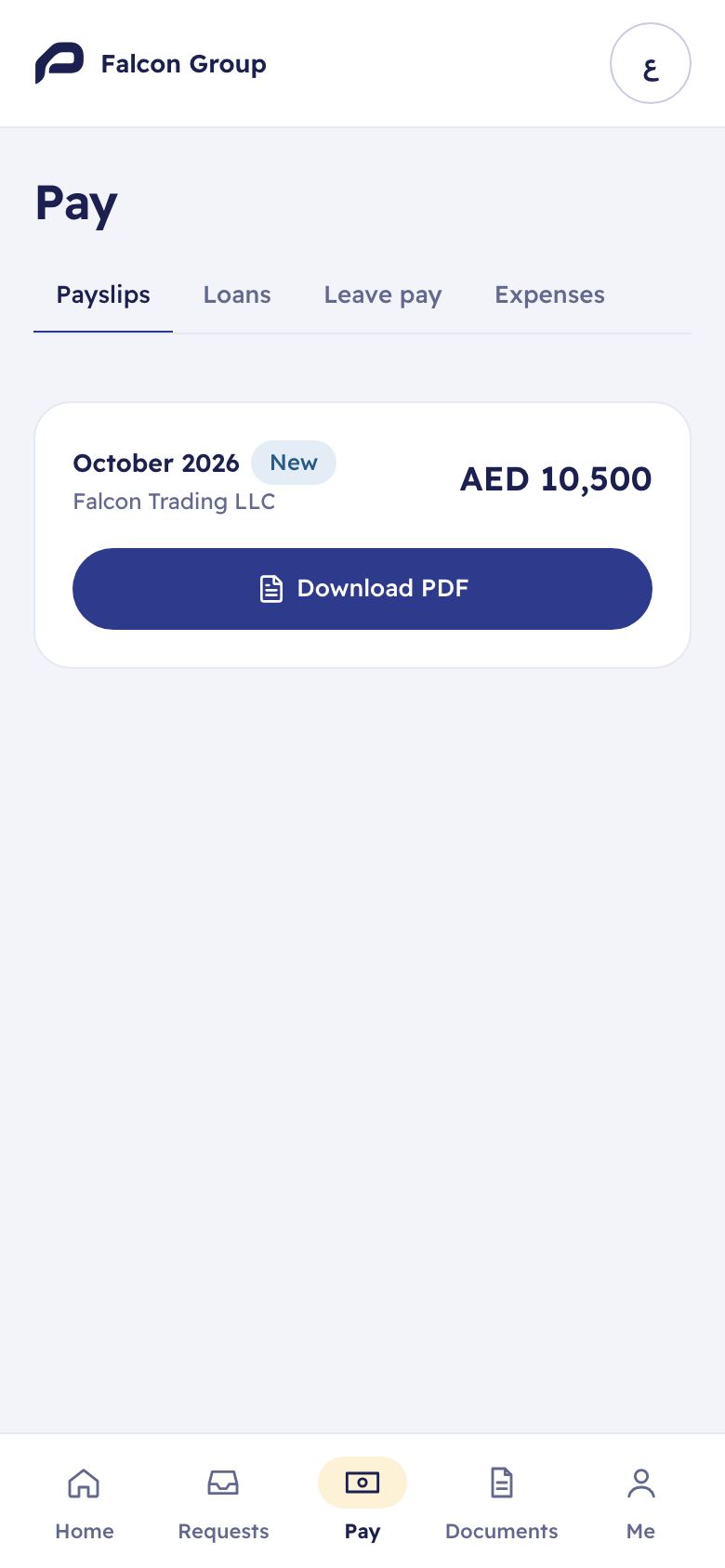
- Payslips: one card per published payslip with its net pay. A month can have more than one, for example an off-cycle or end-of-service run. Download PDF opens the payslip in English and Arabic. A New badge marks payslips not opened yet.
- Loans: their loans and advances, what is left to repay and the next instalment, with Request a loan or advance.
- Leave pay and Expenses: leave salary and their expense claims.
A payslip appears only when the run is closed. At that moment employees with a Moazaf login get a notification and an email that it is ready. Employees without a login get the email only if their work email is on their profile; otherwise no message is sent. The message never shows the amounts.
9. Common questions
An employee is missing from the run.
- Answer
- Check the run's company, the employee's hire date and termination date, and any end-of-service settlement for that month. A missing salary does not remove someone from the run: it shows a warning. After fixing the record, click Recalculate on the draft run.
Why can I not approve my own run?
- Answer
- Either you are not a payroll approver for this run, or Require independent payroll approval is on and you prepared, changed or submitted it. Ask the Owner or another approver.
I found a mistake after approval.
- Answer
- Before it is paid, an approver can Reopen the run. After closing, correct it in next month's run or in an off-cycle run.
Does Moazaf send the money or upload the WPS file?
- Answer
- No. Moazaf makes the SIF file; you upload it to your bank or exchange house.
Can I pay a bonus outside the monthly run?
- Answer
- Yes. Create a New payroll run with the type Off-cycle and choose the employees.
An employee cannot see their payslip.
- Answer
- Payslips appear when the run is closed, and only in self-service for employees with a login. Check the run status.
Where do I change the pay day or loan limits?
- Answer
- Payroll › Settings › Edit policy for the company.
Still stuck? Email support@moazaf.com.
Still need help?
Email our support team. Tell us your company name and what you were trying to do.
support@moazaf.com