
Letters
Letter templates and their merge fields, issuing a salary certificate or NOC, the PDF with its QR code, and letter requests from employees.
Checked against the app on Wednesday, November 4, 2026
1. How letters work
A letter is made from a template. The template holds the wording in English and Arabic, with merge fields such as the employee's name, job title and joining date. When you issue a letter, Moazaf fills in the fields for that employee, gives the letter a number (LTR-00001, LTR-00002 and so on) and makes a PDF with the company letterhead, the signatory and a QR code that anyone can scan to check the letter is genuine.
There are two ways to get a letter: HR issues it straight away, or the employee asks for it in the app and HR issues it after the request is approved.
Letters
Owner, Admin
- What they can do with letters
- Everything, including the letter templates.
Payroll Admin
- What they can do with letters
- Sees and issues letters, including salary certificates. Cannot change templates.
HR Manager
- What they can do with letters
- Sees and issues letters, but not other employees' letters that contain salary (salary certificates), because that needs access to salaries. Cannot change templates.
Line Manager, Employee
- What they can do with letters
- Sees their own letters and asks for letters in the app.
Letters are part of Requests & approvals, which is included in every plan.
For HR and administrators
2. Letter templates
Every workspace starts with four built-in templates. They are ready to use: you only need to add the signatory.
Settings › Letter templates
Salary certificate
- What it says
- The employee works for the company, with their monthly salary and basic salary. Marked as containing salary.
- What HR types in
- Total monthly salary, basic salary and currency (they are not read from payroll).
No objection certificate (NOC)
- What it says
- The company has no objection to the purpose you give, for example applying for a driving licence.
- What HR types in
- Nothing extra.
Experience certificate
- What it says
- The employee's job title and the dates they worked for the company.
- What HR types in
- Nothing extra.
Employment letter (to whom it may concern)
- What it says
- The employee works for the company, with their job title and joining date.
- What HR types in
- Nothing extra.
Click a template to open it. It has four parts:
- General: the name in English and Arabic, the letter type, the default language, whether employees can request it, whether it contains salary, and whether it is active.
- Wording: the subject and body in English and Arabic.
- Extra details: fields HR fills in each time, such as a salary amount. Each field has a label, a type (short text, long text, number, amount, date, choice list or yes/no) and can be required.
- Signatory: the name and title of the person who signs, a signature image and the company stamp.
The built-in templates have no signatory yet. Add one before you issue letters, or the PDF has an empty space where the signature goes.
For HR and administrators
3. Merge fields in the wording
Above the subject and body you see the merge fields as small chips. Put the cursor in the subject or the body, then click a chip to insert it. In the text it looks like `{{employee.name}}`; on the letter it becomes the real value.
Merge fields work in the subject too, for example `Salary certificate: {{employee.name}}`. A field with no value prints a dash.
- Employee: name, employee number, job title, department, nationality, passport number, joining date and last working day.
- Company: the company name, trade licence number and address, taken from the employee's company.
- Letter: the date, the letter number, who it is addressed to and the purpose.
- Signatory: name and title.
- Extra details: every field you add under Extra details also becomes a chip, for example `{{input.monthly_salary}}`.
Leave an empty line between paragraphs. Write the English and Arabic body separately; each language is its own page in the PDF.
For HR and administrators
4. Issue a letter yourself
- Go to Letters and click Issue letter. You can also open the employee, go to the Requests tab and click Issue letter there; the employee is already filled in.
- Choose the Employee and the Letter template.
- Choose the Language: English, Arabic or both. With both, the PDF has an English page and an Arabic page.
- Fill in Addressed to (for example the bank or embassy) and the Purpose if the letter needs one. Fill in any extra details the template asks for, such as the salary amounts.
- Click Preview to check the letter, then click Issue letter.
The letter opens on its own page with its number. If the employee has an active account in Moazaf, they get an email that their letter is ready, and a notification in the app unless they turned app notifications off. Nothing is sent when you issue a letter to yourself.
Only people who can see salaries can issue letters that contain salary, or see other employees' salary letters. Employees can always see their own letters.
For HR and administrators
5. The PDF and the QR code
Open a letter from Letters and click Download PDF. The PDF has the company letterhead, the reference number and date, the wording, the signatory with signature and stamp, and a QR code at the bottom.
Anyone who scans the QR code, or opens the verification link printed next to it, sees a public page that confirms the letter is genuine: the number, the letter, the employee, the company and the issue date. Nothing else about the employee is shown.
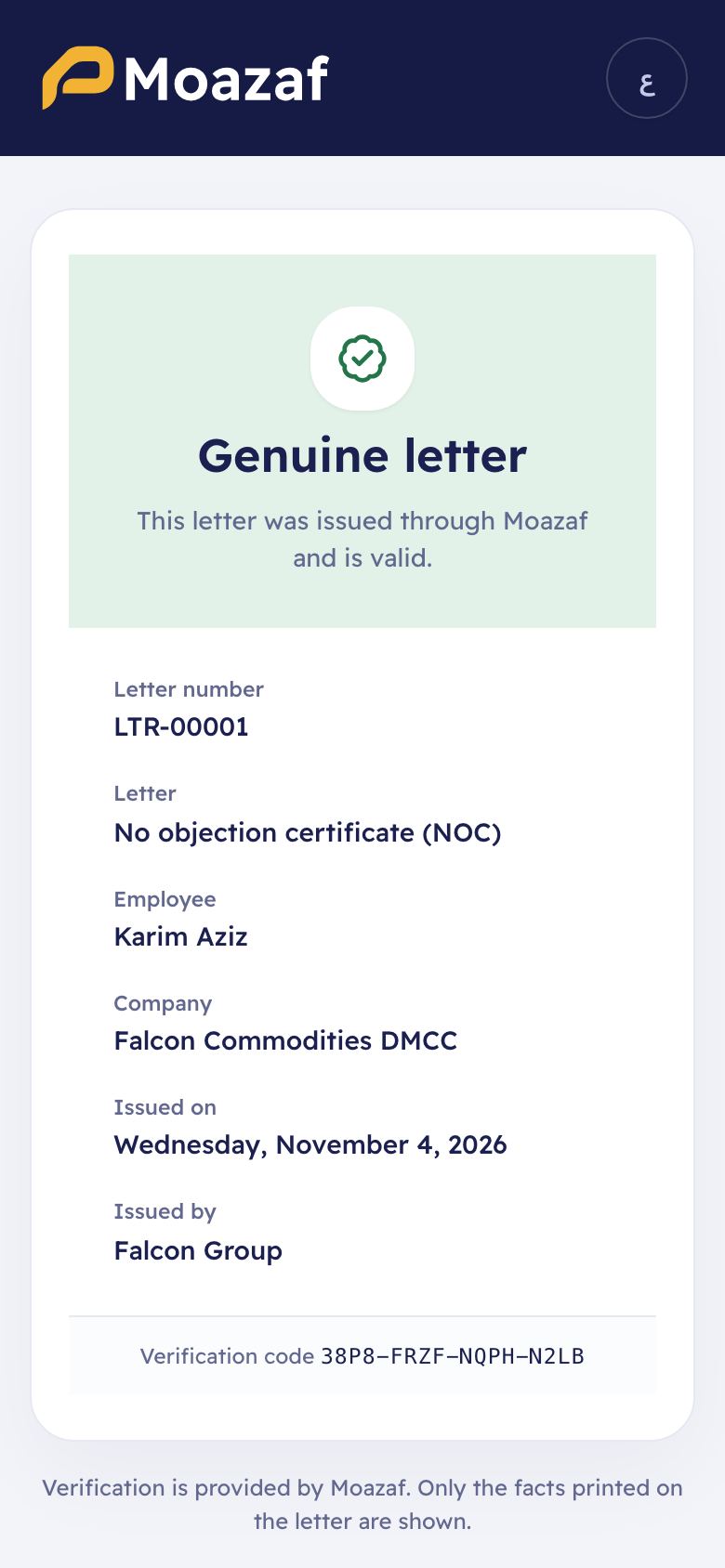
If a letter was issued by mistake, open it and click Revoke, and give a reason. The verification page then says the letter is revoked. This cannot be undone; issue a new letter instead.
For employees
6. Ask for a letter (employees)
Employees with the app ask for letters themselves instead of sending an email to HR.
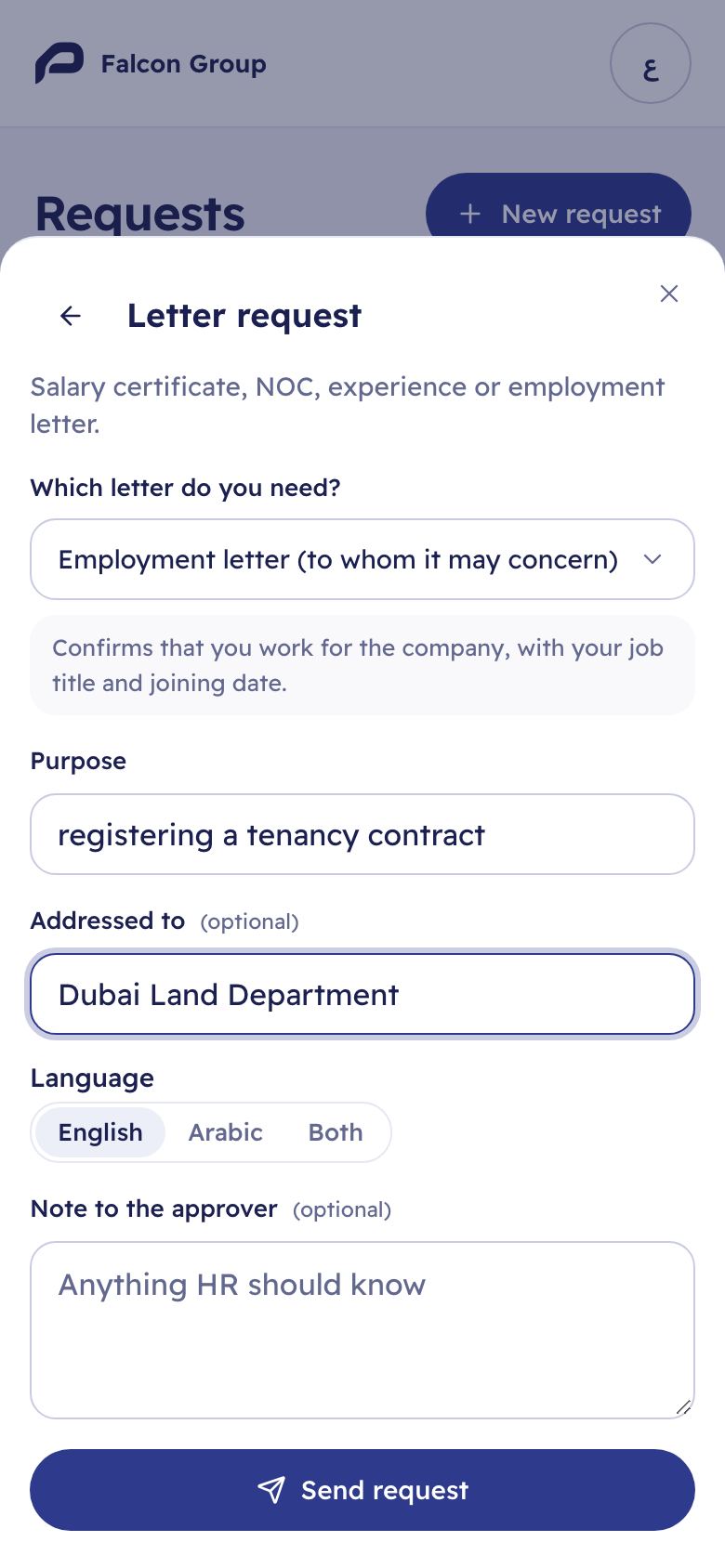
- In the app, ask for something new and choose Letter.
- Under Which letter do you need? choose the letter, for example a salary certificate or an employment letter.
- Write the Purpose, for example opening a bank account. Add who it is addressed to and the language if you need them, and a note for HR.
- Tap Send request.
You see the request under Requests with its status. When the letter is issued you get an email and a notification in the app (unless you turned app notifications off), and you can download it from Letters.
For managers
7. How HR fulfils a letter request
A letter request goes to HR for approval (the HR Manager role). If nobody has that role, it goes to another member who can approve requests, such as the payroll admin.
- Go to Approvals and open the letter request. You see the letter, the purpose, who it is addressed to and the language.
- Click Approve, or reject it with a note to the employee.
What happens next depends on the template:
- Nothing required to fill in (NOC, experience certificate, employment letter): the letter is issued as soon as the request is approved, if the approver can issue it. Extra details that are not required stay empty.
- Required extra details (the salary certificate), or an approver who cannot issue the letter: the letter waits under Letters › To issue. Someone who can issue it opens it, fills in the details, such as the salary amounts, and clicks Complete and issue. If the letter should not be issued, click Discard.
Once the letter or its draft exists, the request shows a link to it. The employee can always open their own letter; the approver can open it only if they may see that letter (salary letters need access to salaries). If the draft is discarded, the link goes away.
An HR manager cannot issue salary certificates. Ask the payroll admin or an admin to complete them, or give the HR manager access to salaries.
Still need help?
Email our support team. Tell us your company name and what you were trying to do.
support@moazaf.com